
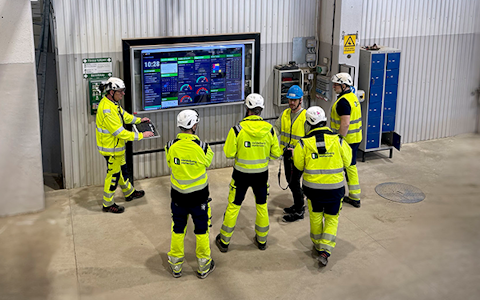
Digital dashboards that help you identify deviations and make the right decisions.

Capture your deviations and turn them into improvements

Continuous improvement, Kaizen boards, PDCA and other tools.
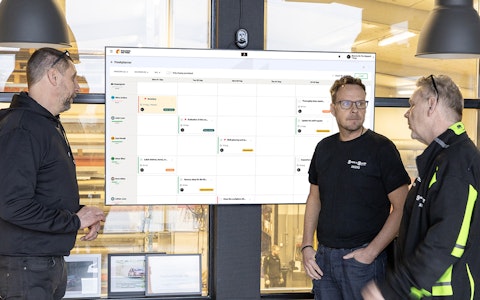
All your team’s tasks, neatly organized in one weekly view.
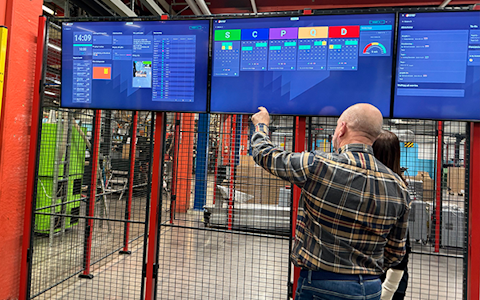
Improve key performance indicators within your specific focus areas with our SQCDP board.

Use the PDCA cycle as a tool to improve both quality and processes
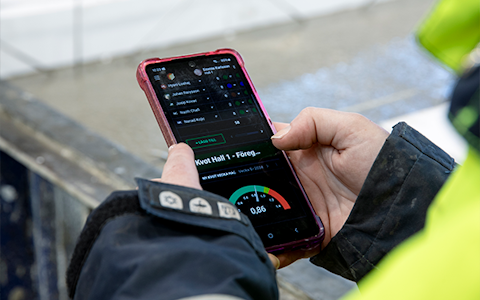
Digital tools for 5S work, recurring audits, and a well-organized workplace.
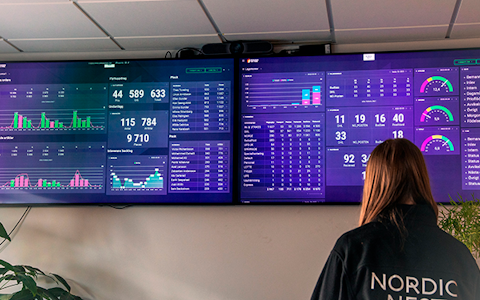
Visualize KPIs and communicate effectively throughout the entire organization.

Basic project management and activity boards.
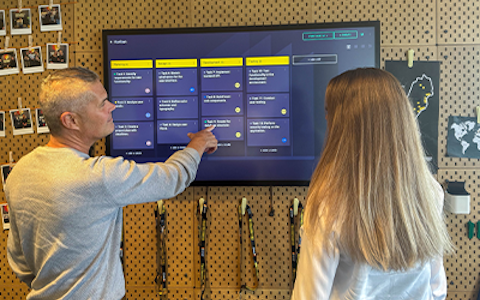
Kanban is a powerful method for visualizing, managing, and optimizing workflows.

Digital dashboards for takt time flow with takt time counter and stop time log.
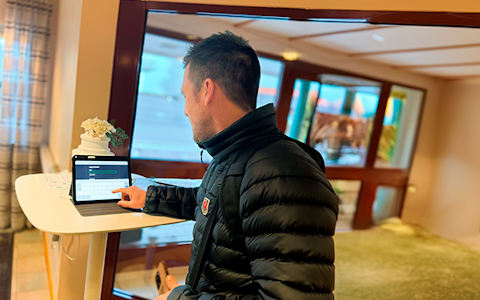
Digital visitor registration provides full control over all planned and executed visits to your business.
The resource planning feature in Boards on Fire is a powerful tool that simplifies and streamlines staff management scheduling. It encompasses everything from attendance planning to managing time schedules and tasks, making it easier to organize and optimize team workflows.
By utilizing resource planning, businesses can ensure a balanced workload where no one is overburdened, while also maximizing the efficient use of available resources. This not only contributes to a more structured workday but also helps maintain high productivity and fosters a positive work environment.
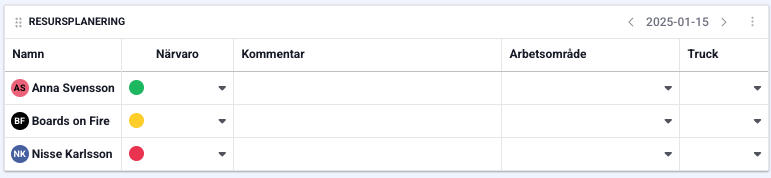
Here are some things that are helpful to keep in mind when you start working with Resource planning in Boards on Fire.
Flexible setup:
You decide what counts as a resource. It can be, for example, employees, machines, or stations.
Displayed as a timeline:
The plan is shown in a calendar-like view where you can easily see workload per day or week if the data source is in day view. Like anything else in BoF, you can also follow it weekly, monthly, quarterly, or yearly.
Color coding & status:
Use colors to signal status such as Present, Other, and Absent. This provides a quick overview.
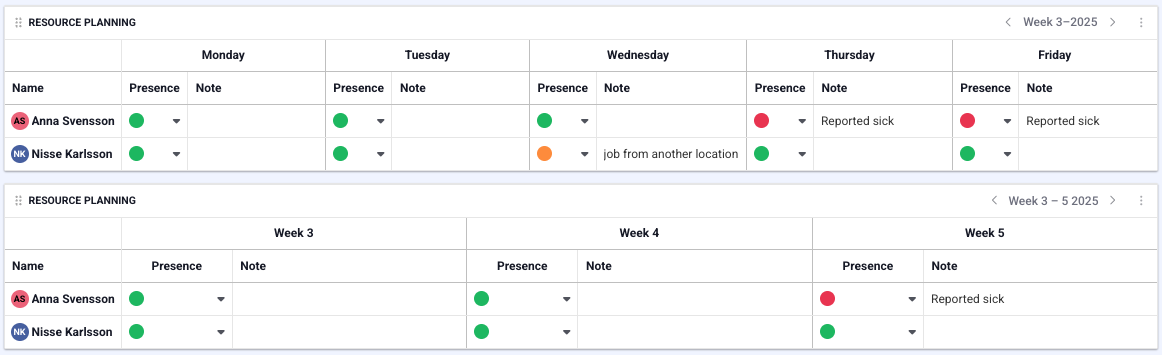
This component requires a data source, which you can learn more about creating in the article “Creating Data Sources and Entities in Boards on Fire.” The fields included in the example image below are as follows:
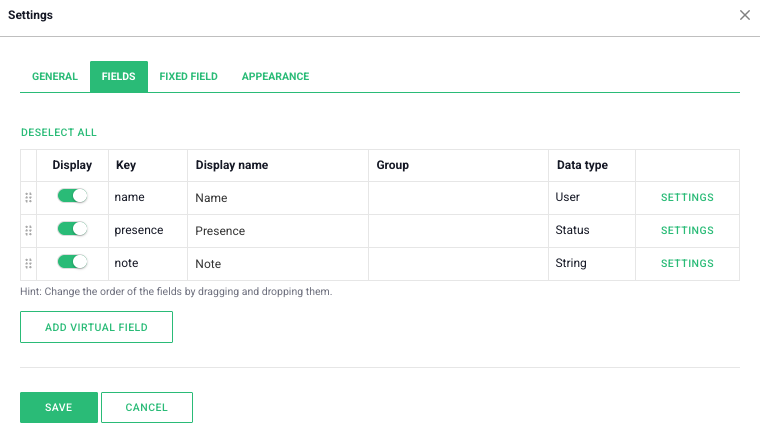
If other fields are desired, you can easily add or remove them in the data source. The only requirement is that at least one field has the data type User, Organization, or Entity. When you access the “Fields” tab in the component’s settings, the fields from the selected data source will be displayed. To add new fields or delete existing ones, these changes must be made directly in the data source.
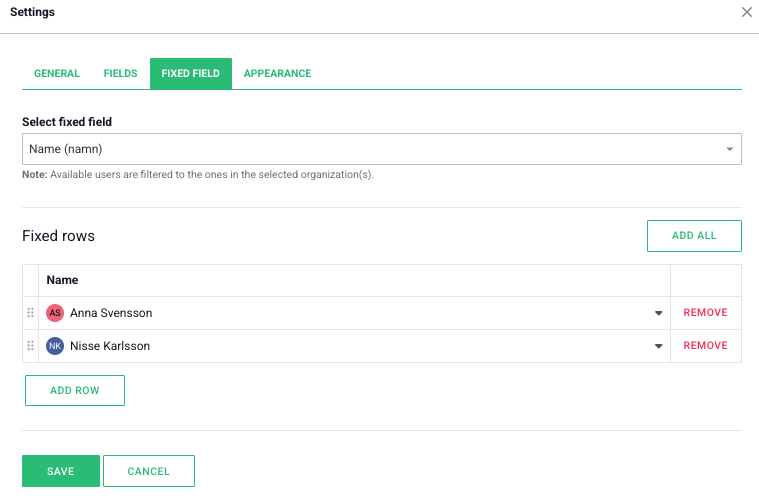
Once the data source has been created and selected in the component, a fixed field needs to be chosen. This field must be of the data type User, Organization, or Entity, as mentioned above. When selecting the User data type, you will be able to add individual employees to the lists, provided that the desired staff members are included in the lists. If Organization is selected as the fixed field, an organization can be chosen for the rows. When selecting Entity, a list of different labels can be created and then added to the rows in the component. Once a fixed field is selected, you can add, for example, employees if the User data type has been chosen.
Under the “Appearance” tab, you can configure the component to display either daily or weekly data. If you choose to display a week’s data, the weekend can be hidden if desired. There is also a setting within the data source where precision can be selected. However, these should be distinguished as they will provide two different appearances and functions.
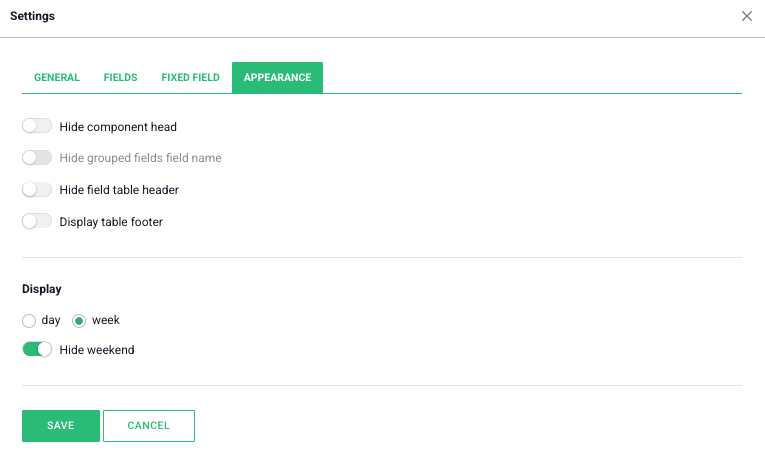
In the top resource planning, the data source is set to daily, but the settings in the component are configured to weekly. In the bottom resource planning, the data source is set to weekly, where the setting for the number of columns is then available.
If you want to know more about the Resource planner, check out this video:
Free web demo