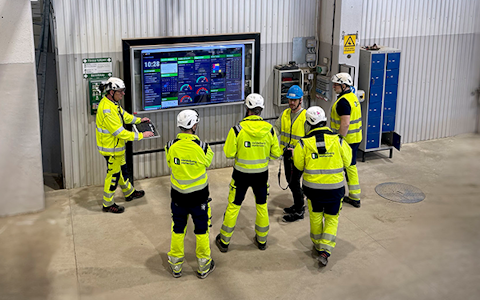
Digital dashboards that help you identify deviations and make the right decisions.
Capture your deviations and turn them into improvements
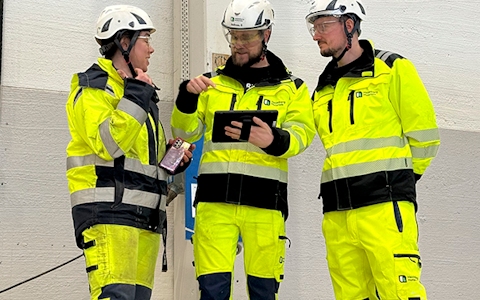
Continuous improvement, Kaizen boards, PDCA and other tools.
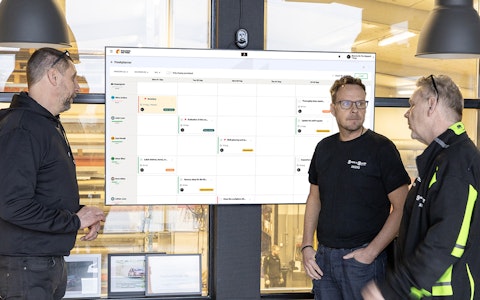
All your team’s tasks, neatly organized in one weekly view.
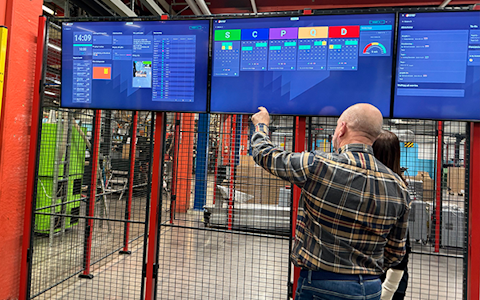
Improve key performance indicators within your specific focus areas with our SQCDP board.

Use the PDCA cycle as a tool to improve both quality and processes
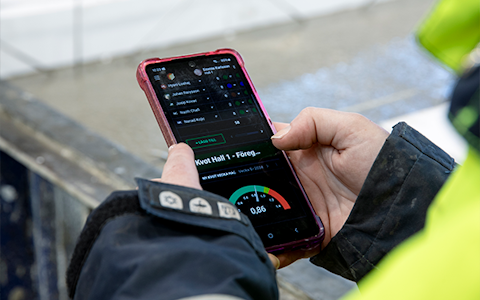
Digital tools for 5S work, recurring audits, and a well-organized workplace.
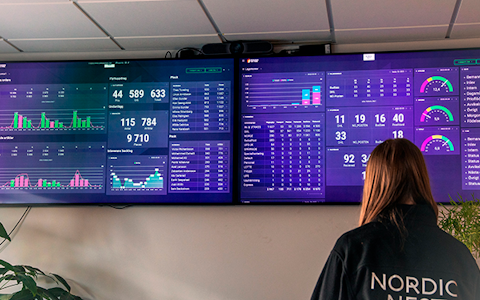
Visualize KPIs and communicate effectively throughout the entire organization.

Basic project management and activity boards.
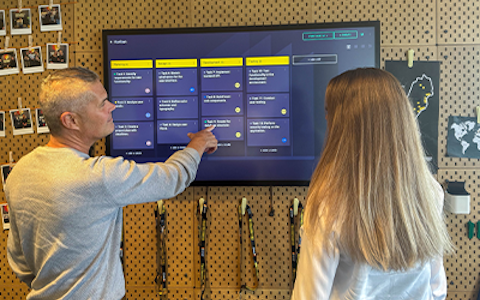
Kanban is a powerful method for visualizing, managing, and optimizing workflows.

Digital dashboards for takt time flow with takt time counter and stop time log.
Digital visitor registration provides full control over all planned and executed visits to your business.
The status component is a calendar in month view that provides an intuitive way to record and track deviations in areas such as quality, delivery, and production.
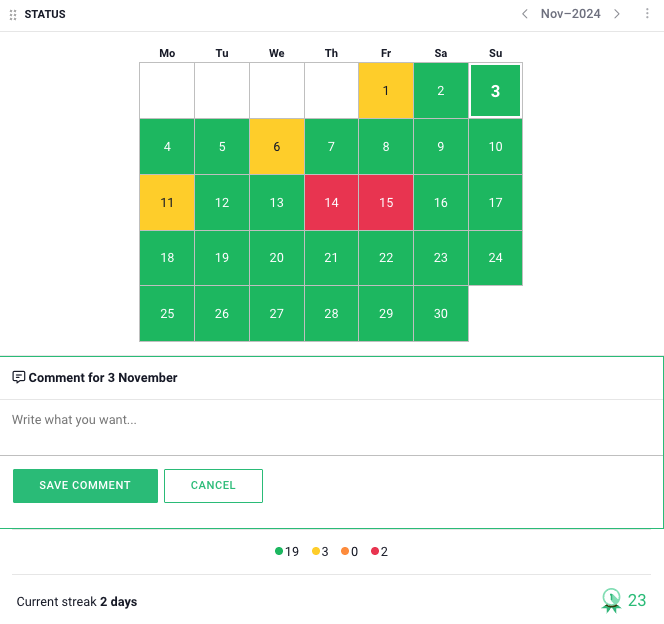
• Monthly View: Provides a clear overview of daily deviations across an entire month.
• Customizable Logging: Enables the registration of various types of deviations across different areas.
• Visualization: With clear color codes, users can quickly identify days with reported deviations.
Examples of Use Cases:
• Quality: Track and log product quality deviations.
• Delivery: Monitor delays or issues with deliveries.
• Production: Identify and document production disruptions.
To log the status of a specific day, click on the desired date in the calendar. Upon doing so, a color selection will appear, allowing you to choose from four colors: green, yellow, orange, and red. Each color represents a specific status—for example, green for a day with no deviations and red for a day with serious issues. You can rename these statuses to fit your organization’s specific workflow, as explained in the “Status Configuration” section. Select the color that best reflects the day’s events to log it accurately.
In the status component, you can also create both deviations and improvement actions. For more information on working with deviation management and improvement efforts in Boards on Fire, refer to the related articles.
This component requires a data source. The only field that needs to be created in this data source is a field with the data type “status”. Once you have created the data source, go to the component settings, which can be found by clicking the three dots in the top-right corner.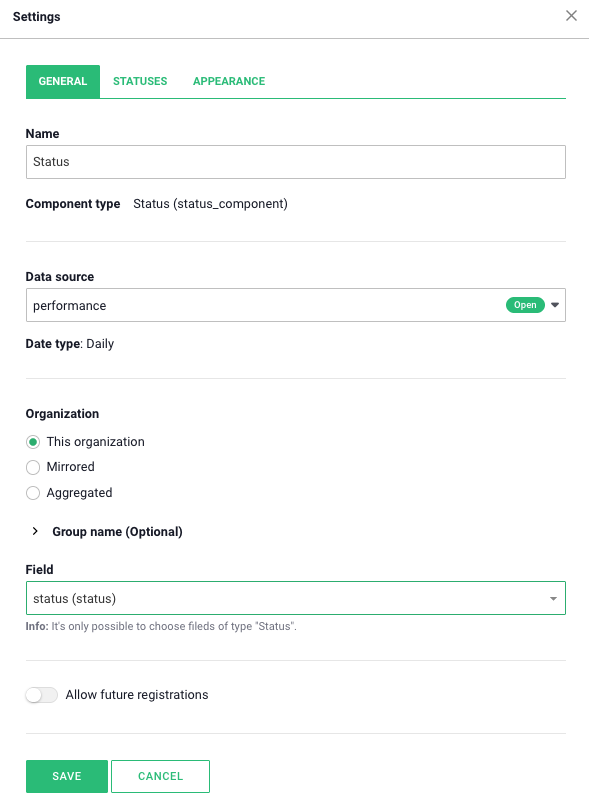
In the settings for this component, you can assign custom names to the colors and exclude them if needed. These settings are under the “Statuses” section. To customize the status names, activate the “Custom status names” button and then enter the desired name in the box where the current name is displayed. To hide or show specific colors, click the button next to each color.
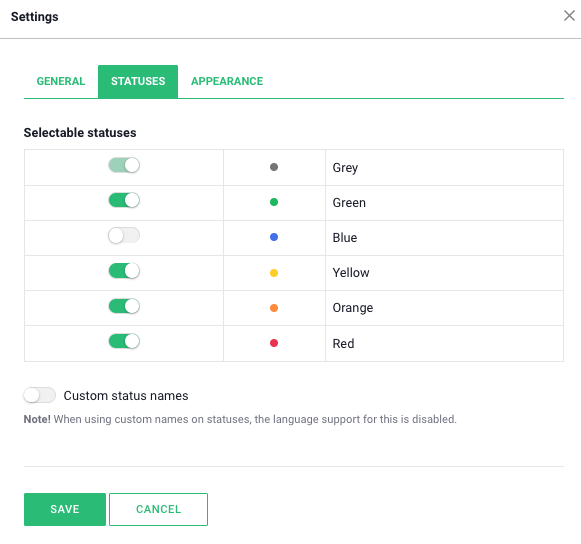
Den sista rubriken för inställningar i statuskomponenten är "Utseende".
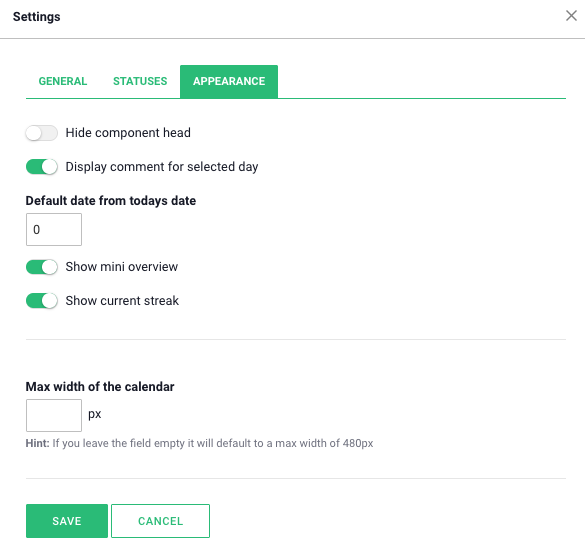
Here you can enable various display options to customize how information is presented in the calendar. By turning on “Show comments for selected day”, you can view the comments added for specific days. To display the number of days logged in each color during the month, enable the “Show mini overview” option. You can also activate a streak function, which shows how many consecutive days have passed without a red day, by selecting “Show current streak”.
Using Global Status, we can standardize and clarify what a status means across the entire organization. Instead of simply marking "Red," a common definition is now provided, such as "Critical Deviation – Action Required."
For key performance indicators (KPIs), the status can also be linked to measurable thresholds; for example, red corresponds to "<75%." This creates a unified understanding and makes status reports more comparable and action-oriented.
Below is an example from our resource planning:
Before Global Status, the colors in the status field were fixed, and the label for each color was also predefined.
With Global Status, you can now:
In the example below, we have chosen:
Green = Working
Yellow = Vacation
Red = Absent
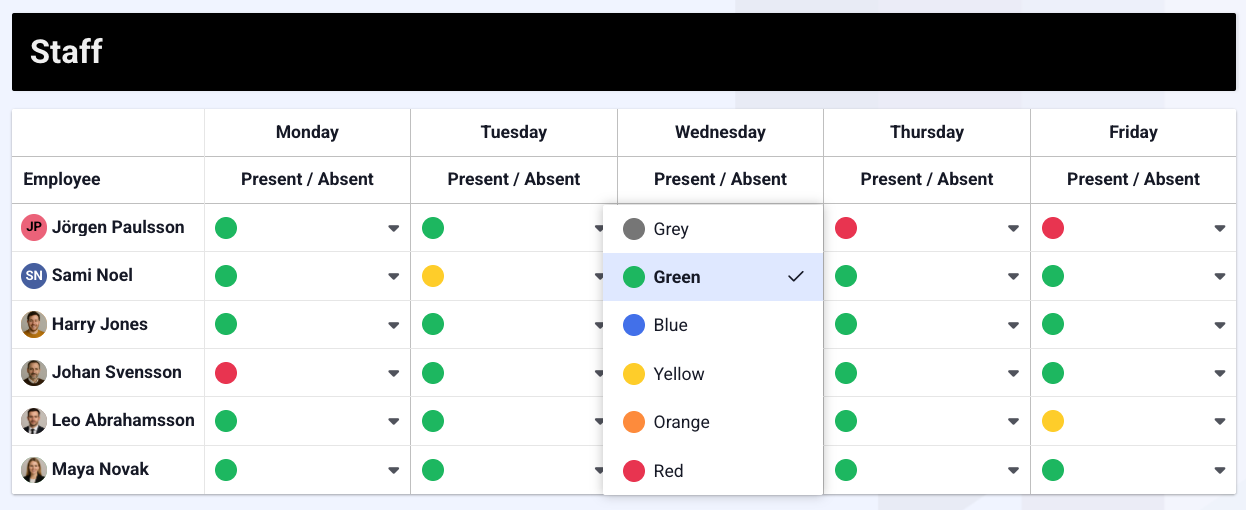
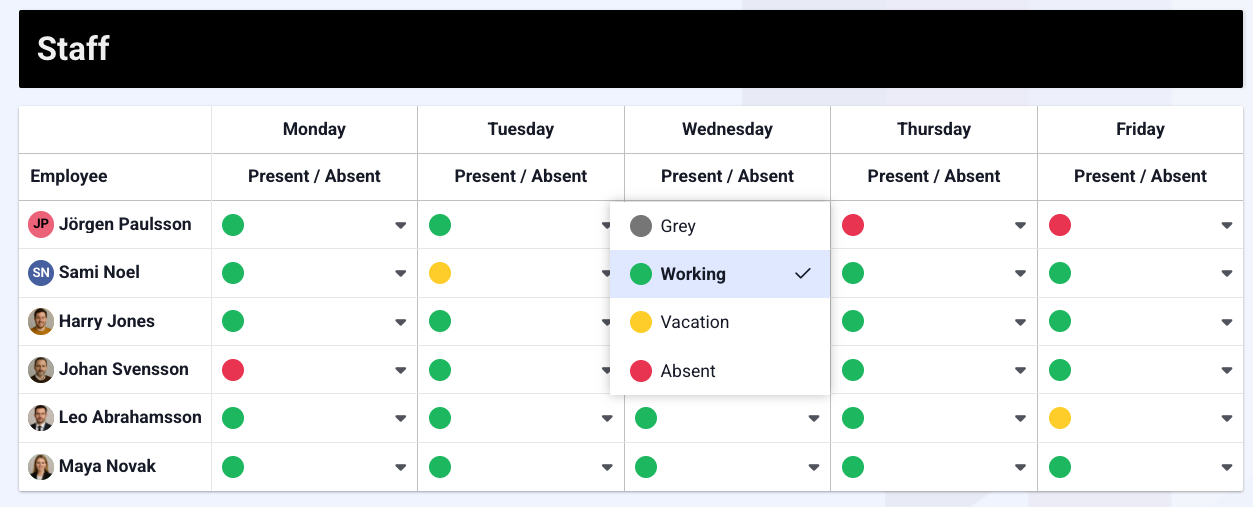
You can make the settings either for the entire organization or for individual departments and teams. This means you either create a common standard for the whole organization or give each department the flexibility to adapt the settings to their specific needs.
With Global Status, you gain full control over how status is displayed in your system, makin planning, execution, and follow-up easier. It also simplifies the process for employees to select the correct status when there are only three option available, with clear and easy-to-understand labels.
All new fields of the Status type are automatically activated as Global Status with default settings. This means they look exactly as usual, with the same colors and layout. For existing status fields, you must actively turn on Global Status yourself.
Global Status is available both in a data source and in entities. The only requirement to use the feature is that there is a field with the data type "Status".
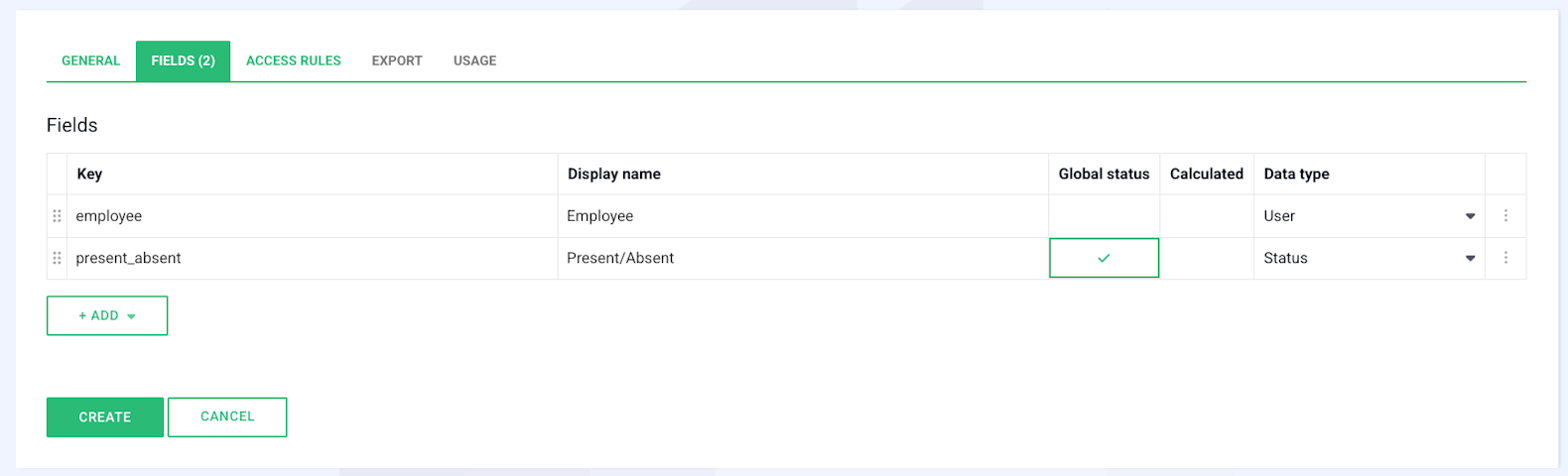
Global Statuses ensure consistent usage across the entire system. Once activated, the same set of statuses is used everywhere, including in manual entries and imports.
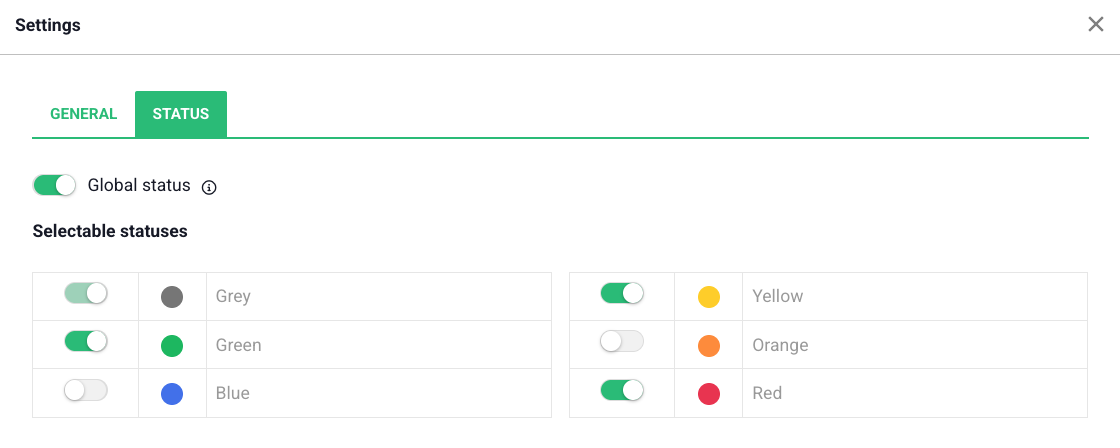
4. Select Colors
In the first step, you can choose which colors should be available for this data source/entity. Note that if you deactivate a color, it will be removed from the list where labels are set and can no longer be selected.
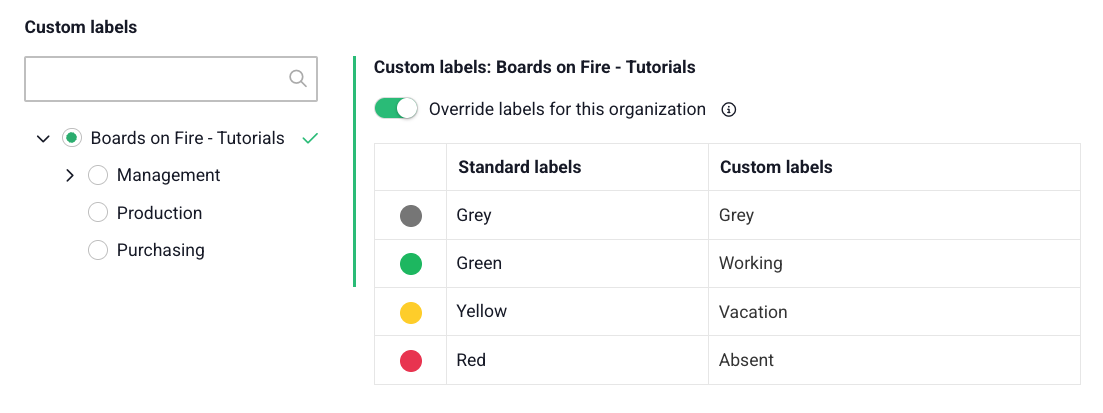
5. Set Custom labels
In the next step, you can set your own custom labels to the different colors so that they fit your way of working.
Global Status at the Organizational Level
Global Status is applied to the main organization by default, meaning all underlying organizations also get the same labels for this field if they use the same data source/entity. This applies regardless of which component is used to view the data source/entity.
If a department wants its own labels, there is support for that. You select the department in the organizational tree and set up separate settings specifically for that department. Keep in mind that the departments under that organization will also inherit the same designations.
Global Status enables you to put your own stamp on the status field in Boards on Fire. By choosing colors and labels yourselves, you can create a structure that reflects your specific workflow. The function provides consistency at the business level and flexibility at the departmental level, which facilitates planning, follow-up, and collaboration across the entire organization.
Please note that if Global Status is enabled for a field, it affects Greencross and the Status component. You cannot change the status or labels at the component level but need to do so directly in the data source/entity.
There are many smart add-on features in Boards on Fire. As a logged-in user, you can find a list of them all under Add-ons in the left-hand menu!
There are many smart add-on features in Boards on Fire. As a logged-in user, you can find a list of them all under Add-ons in the left-hand menu!
Free web demo