

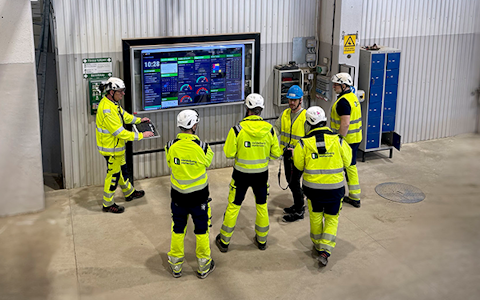
Digital dashboards that help you identify deviations and make the right decisions.

Capture your deviations and turn them into improvements

Continuous improvement, Kaizen boards, PDCA and other tools.
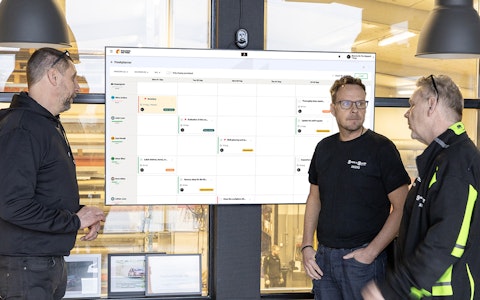
All your team’s tasks, neatly organized in one weekly view.
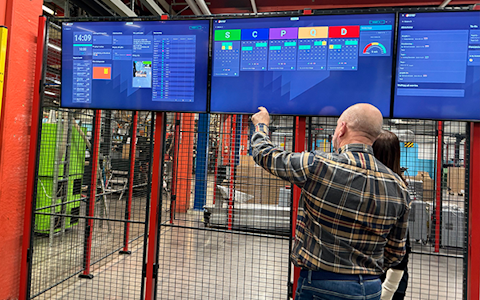
Improve key performance indicators within your specific focus areas with our SQCDP board.

Use the PDCA cycle as a tool to improve both quality and processes
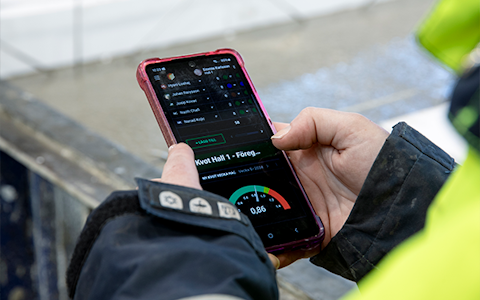
Digital tools for 5S work, recurring audits, and a well-organized workplace.
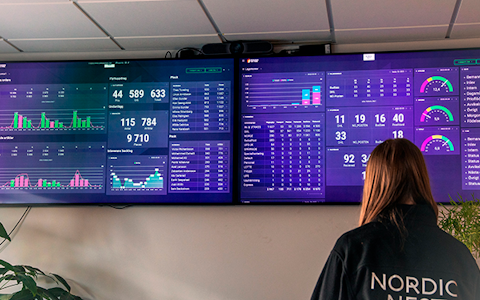
Visualize KPIs and communicate effectively throughout the entire organization.

Basic project management and activity boards.
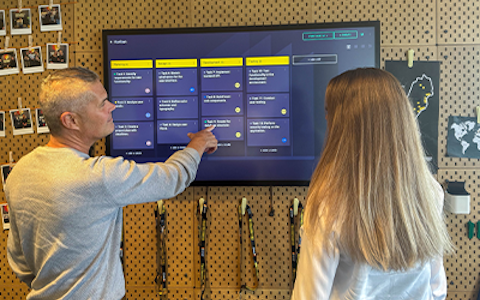
Kanban is a powerful method for visualizing, managing, and optimizing workflows.

Digital dashboards for takt time flow with takt time counter and stop time log.

Digital visitor registration provides full control over all planned and executed visits to your business.
The Iframe component in Boards on Fire allows you to display and work with content from external sources directly within a board. For example, you can embed web pages, Microsoft Power BI reports, or Microsoft Excel files.
The component acts as a window where external content is displayed in real time. This means you can not only view the information but also interact with it directlywithout leaving Boards on Fire. In many cases, you can work within the embedded document just as you normally would, depending on how the source is configured.
By using the Iframe component, you can centralize important tools and data in one place. This creates a more cohesive workspace, reduces the need to switch between different systems, and makes it easier to keep your team aligned.
With the Iframe component, you can for example:
Navigate web pages: Browse and interact with websites directly in Boards on Fire.
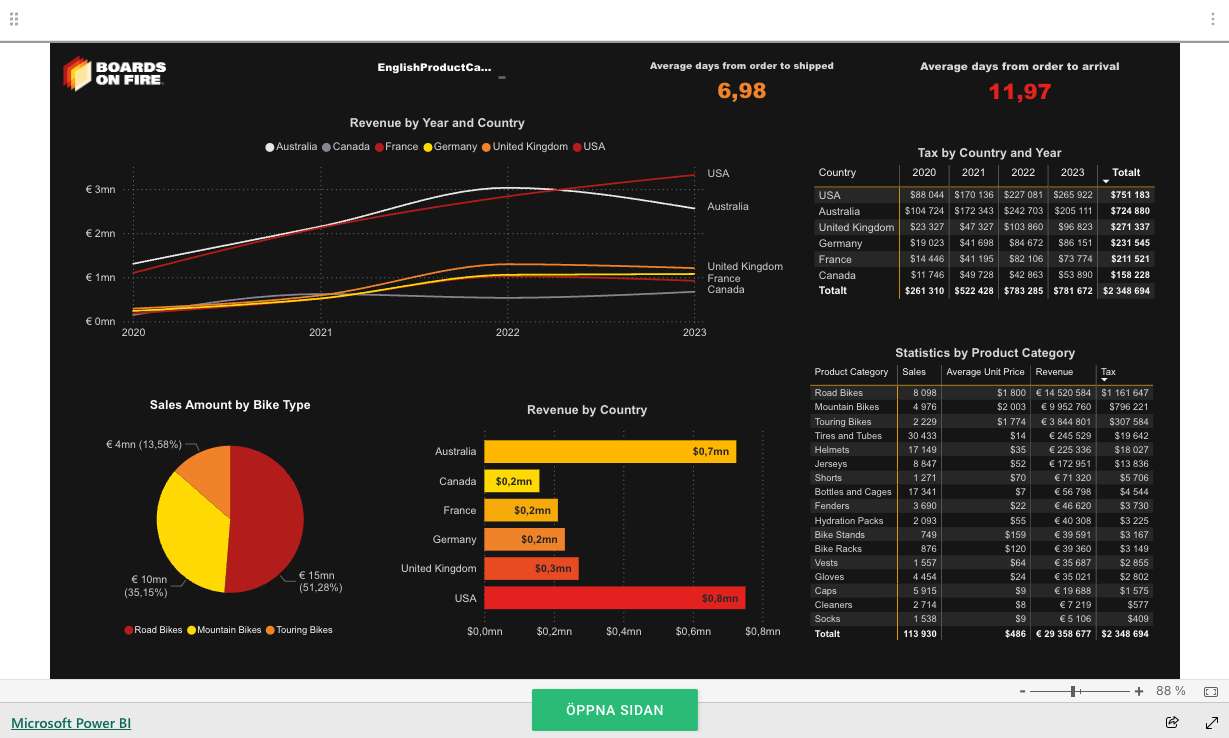
Analyze data in Power BI reports: You can filter and interact with Microsoft Power BI reports to explore data without opening a new window.
Work with Excel documents: Edit and update Microsoft Excel files directly in the embedded frame, making it easy to manage data while staying focused on your other workspaces.
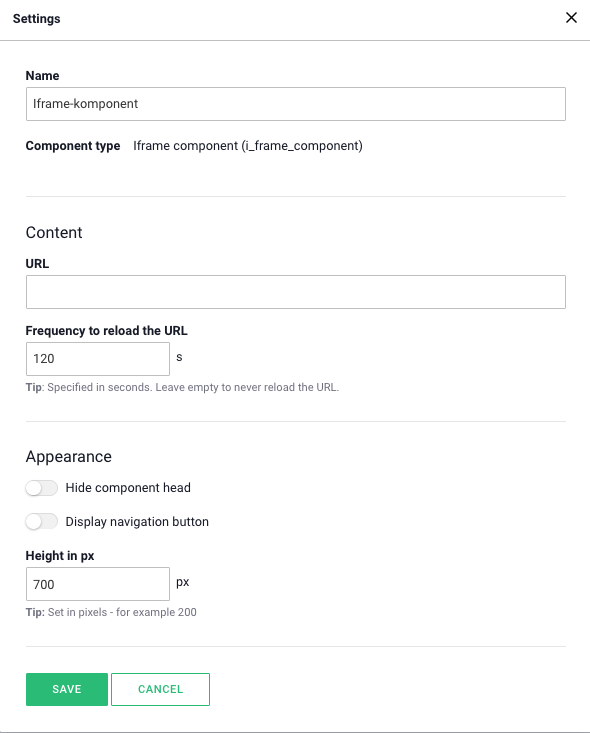
When you click on "Iframe Component" in the component menu, a box with a settings button will appear. Click the button to open the settings, as shown in the next image.
In the settings for the Iframe component, you enter the URL of the location you want to display in the component. You can also set a time interval for how often the URL should be refreshed. The settings include an option to display a navigation button. This adds a green button with the text "Open Page" on top of the document. When you click this button, the location visualized in the Iframe component will open. This serves as a shortcut to access the webpage or document directly.
The "Open Page" button appears when the navigation button is enabled.
With content from certain sources, it is possible to manipulate the URL to make the Iframe window perform new actions. This is done by adding a suffix to the link you input into the component. The suffixes we are familiar with are:
All Microsoft services:
1. &action=embedview – Required to make the link work.
Excel:
1. &wdAllowInteractivity=True – Makes the document’s content interactive.
2. &wdbipreview=True – Displays BI content within the sheet.
3. &wdHideSheetTabs=True – Hides the sheet tabs at the bottom of the Excel file.
YouTube:
1. &autoplay=1 – Automatically starts playing the video.
2.&loop=1 – Automatically replays the video when it ends.
There are many smart add-on features in Boards on Fire. As a logged-in user, you can find a list of them all under Add-ons in the left-hand menu!
There are many smart add-on features in Boards on Fire. As a logged-in user, you can find a list of them all under Add-ons in the left-hand menu!
Free web demo