


Digital dashboards that help you identify deviations and make the right decisions.

Capture your deviations and turn them into improvements

Continuous improvement, Kaizen boards, PDCA and other tools.
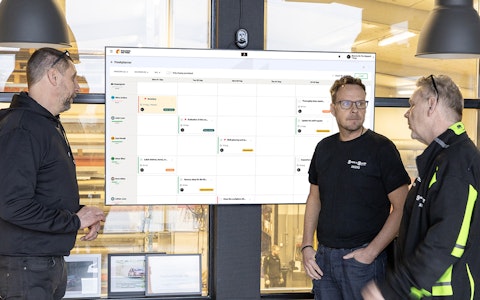
All your team’s tasks, neatly organized in one weekly view.
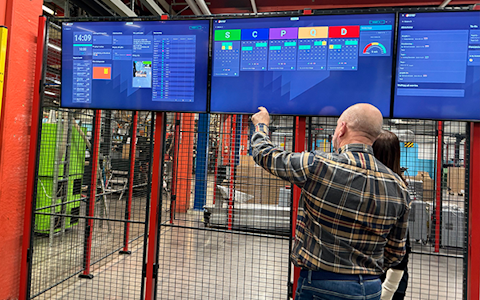
Improve key performance indicators within your specific focus areas with our SQCDP board.

Use the PDCA cycle as a tool to improve both quality and processes
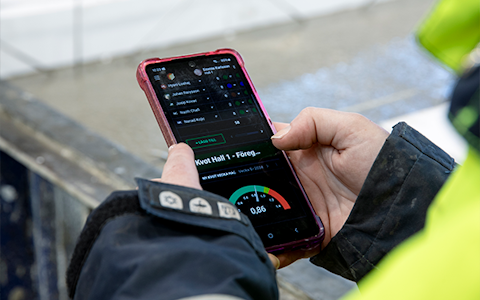
Digital tools for 5S work, recurring audits, and a well-organized workplace.
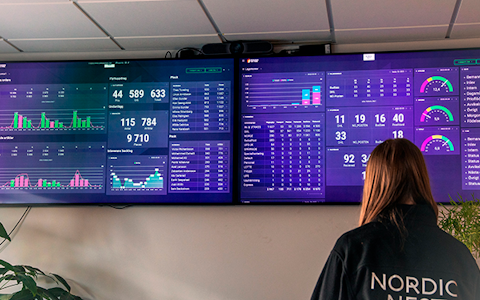
Visualize KPIs and communicate effectively throughout the entire organization.

Basic project management and activity boards.
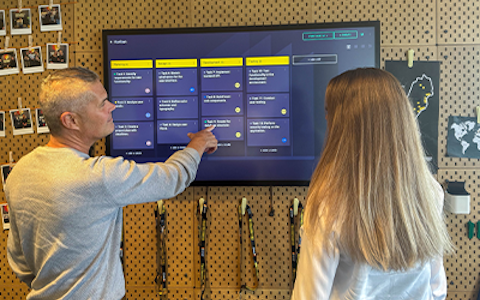
Kanban is a powerful method for visualizing, managing, and optimizing workflows.

Digital dashboards for takt time flow with takt time counter and stop time log.
Digital visitor registration provides full control over all planned and executed visits to your business.
In Boards on Fire, an organizational structure is built where the design is customizable, and it's up to each individual customer to determine based on their business needs. At the top of the organizational tree is the company's name, and from there, it is possible to tailor and expand the structure according to preferences and requirements.
You reach the settings for organizations under the administration tab. When in the settings-view you can see a tree over all your organizations. Here you can also change the order of the organizations in the tree.
 |
 |
 |
You can here create a new organization. When you have pressed the "Add"-button you are first able to choose a name for your organization and under which other organization in the tree it should be placed. You are also able to give it a colour and choose whether it should be a regular organization or a Data carrier.
A Data carrier can't have any boards and will not show up in the side-menu. Data carriers can for example be machines and lets you split up data by mirroring/aggregating data from/to them.
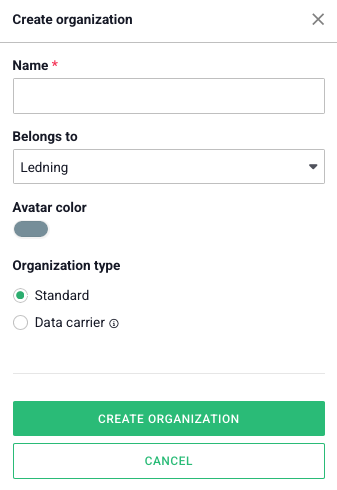
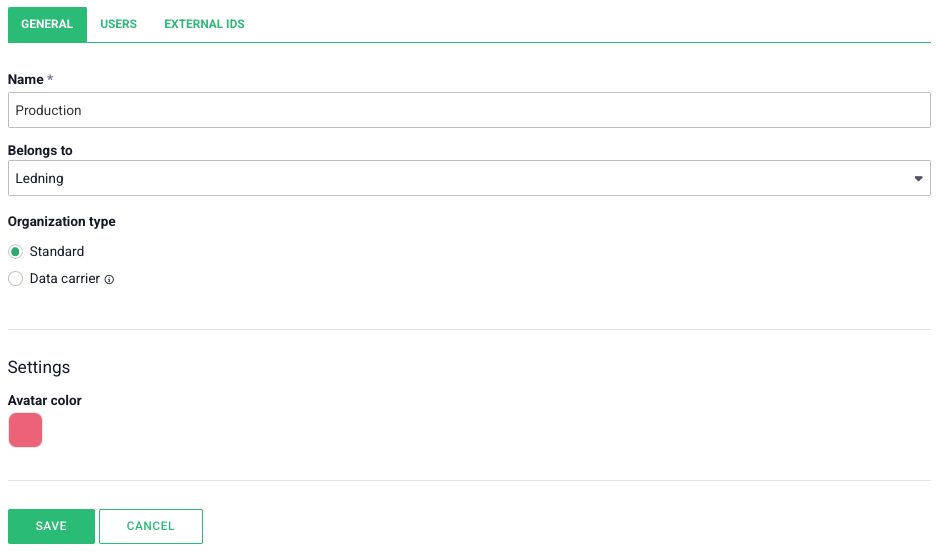
When you have created an organization you can make some adjustments.
Under the tab General you can change the options you made earlier if something went wrong.
Under the tab Users you can see which users have access to the organization and their access level. To give a user access to an organization you add them to an access group.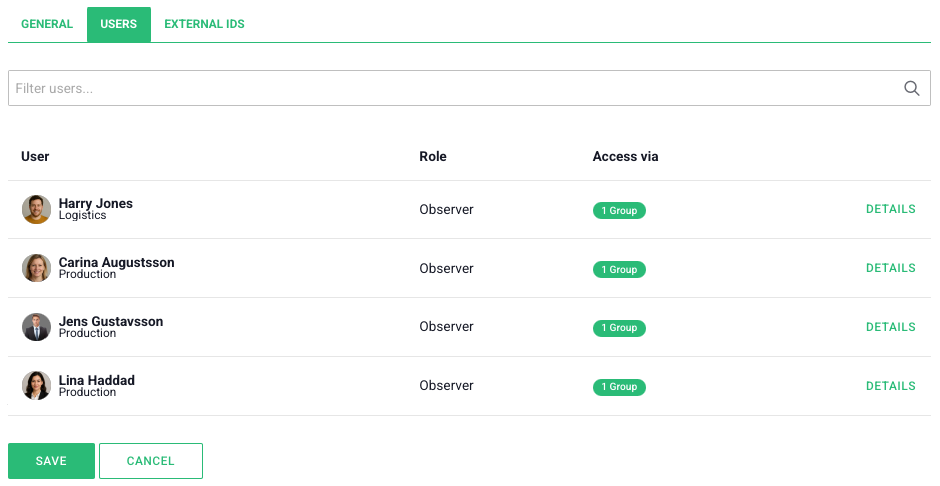
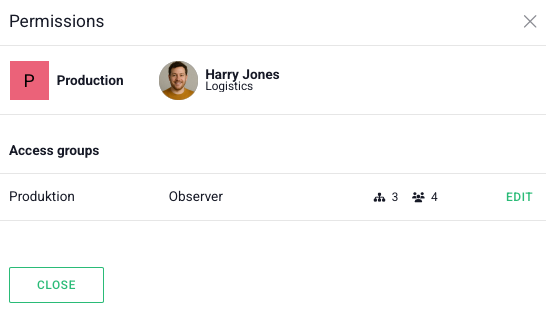
If you press on Details beside a user you can see through which access group the user has access to the organization.
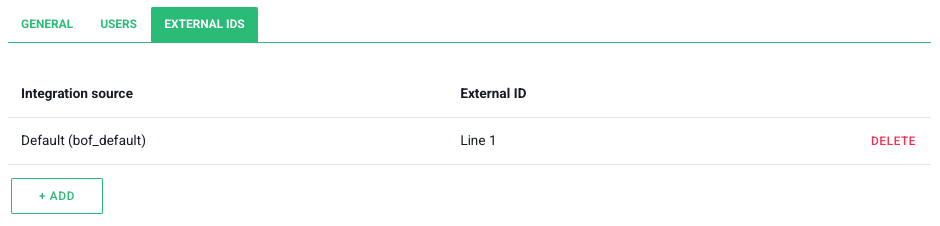
Under the tab External IDs you can give the organization one or more External IDs. They let you easier refer to the organization during an integration if it has another name in any of the systems you use as an integration source.
When you have made your choices you can save the organization and start creating new boards!
Free web demo