


Digital dashboards that help you identify deviations and make the right decisions.

Capture your deviations and turn them into improvements

Continuous improvement, Kaizen boards, PDCA and other tools.
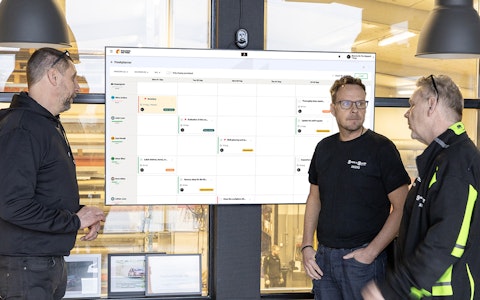
All your team’s tasks, neatly organized in one weekly view.
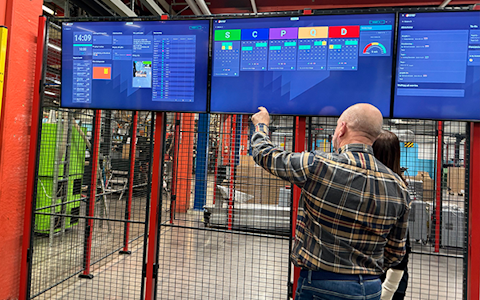
Improve key performance indicators within your specific focus areas with our SQCDP board.

Use the PDCA cycle as a tool to improve both quality and processes
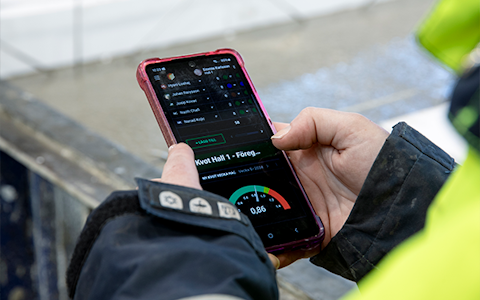
Digital tools for 5S work, recurring audits, and a well-organized workplace.
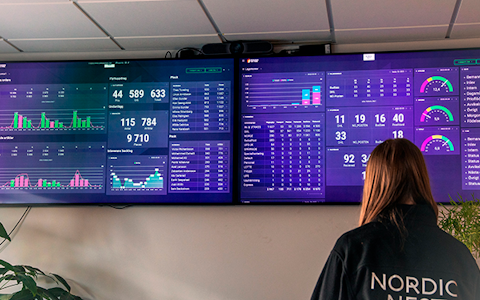
Visualize KPIs and communicate effectively throughout the entire organization.

Basic project management and activity boards.
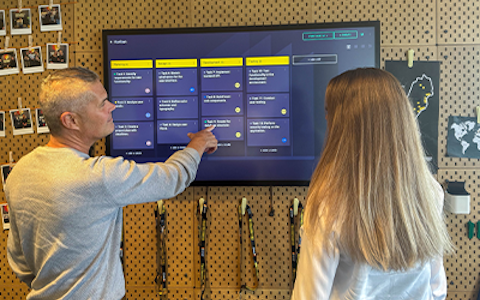
Kanban is a powerful method for visualizing, managing, and optimizing workflows.

Digital dashboards for takt time flow with takt time counter and stop time log.
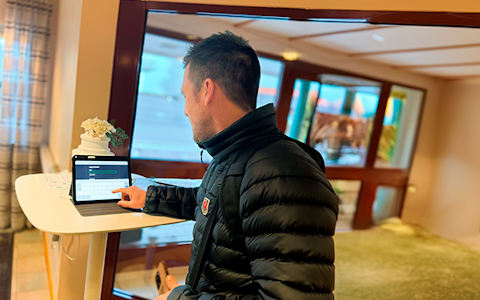
Digital visitor registration provides full control over all planned and executed visits to your business.
Access groups in Boards on Fire are used to control what access different users have to the platforms organizations, which are typically departments and teams structured in different levels.
By placing users in different groups, you can easily control: Which organizations they have access to and what they are allowed to do within each organization. There are three access levels: observ, edit, or create.
Why should you use Access groups?
• To ensure the right people have the right level of access
• To create a safe and structured work environment
• To prevent mistakes by limiting functionality to administrators or responsible roles
Access groups make it easier to see what types of users you have and what access exists within the organization.
Depending on a users role in the company, their need for access in Boards on Fire will vary. Using Access groups allows you to tailor functionality and access levels based on each user’s responsibilities.
Here are some examples:
Operators often need a simpler access level. They should be able to enter new values, follow up information on department boards, and view relevant production data – but not change structures or edit boards. They are typically placed in a Access group with edit rights but without full access to all organizations.
Team leaders have broader responsibilities and therefore require more functionality. In addition to viewing and reporting information, they should be able to create new boards, update information, and manage daily workflows in the system. We recommend giving them create rights, along with relevant training in the platform.
Management has overall responsibility for the business and often needs high or full access. This includes access to all parts of the platform, including administrative information.
Display screens may require limited access to show specific boards, but no one should be able to walk up and make changes. In this case, create a user specifically for the display and place it in a group with read-only access.
They control access to organizations
Access groups determine what a user can see and do in the platform, such as creating boards, entering values, or only reading information.
Users & shared users must belong to at least one group
When a new user is created, they must be added to at least one Access group to access the platform. If not assigned, they will see a message saying “No permission” when they log in.
You can have multiple groups with different purposes, and a user can belong to several
Example: a group for operators with limited access, a group for team leaders with editing rights, and a group for administrators with full access.
Groups can reflect the structure of your organization
It’s helpful to name groups after roles, departments, or shifts – e.g., “Production – Assembly”, “Production – Team Leaders”, or “Admin – Management”.
They can be adjusted later
You can edit a group’s settings at any time or move a user to a different group if their role changes. Note, if you add a new organization in Boards on Fire, you must update the Access groups that should have access to it.
Customer administrators do not need to be placed in a Access group
This user type already has full access to Boards on Fire.
Creating a Access group
When creating a Access group, start by giving it a clear name. You can also add a description explaining the purpose of the group.
Then, select which access should be assigned to the group.
Next, choose which organization or organizations the group should have access to. You can assign different access levels to different organizations, which is an important feature to be aware of.
The settings for access groups can be found under Administration in the side menu, in the tab "Access Groups." There, you can view and edit existing access groups, as well as create new ones.
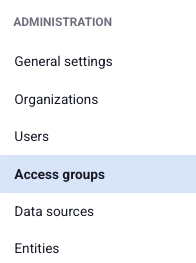
To add a new access group, click on "Add" in the upper right corner under the access groups tab.
First, give the access group a name. The name should describe what it provides access to or, alternatively, who should be included in it.
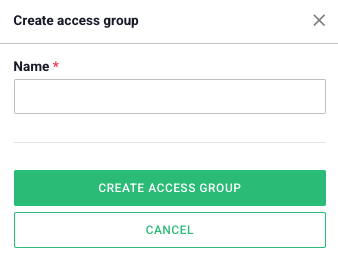
When you click on "Create Access Group," the settings for your new access group will open. There, you will find the tabs General, Permissions, and Users.
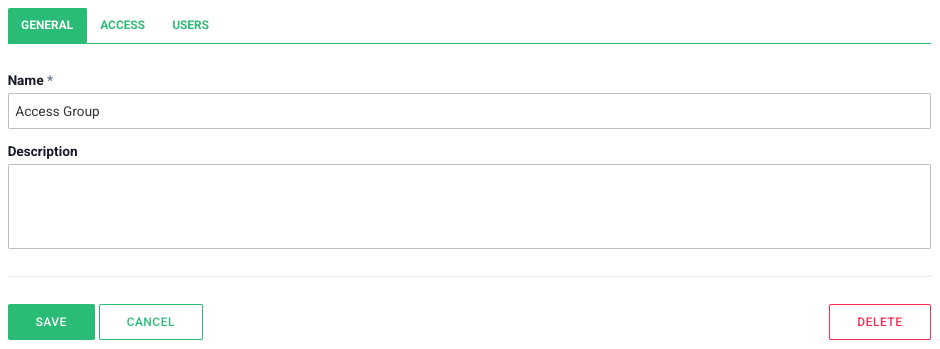
Here are the general settings for the access group. You can edit the access group's name and provide a description of its intended use.
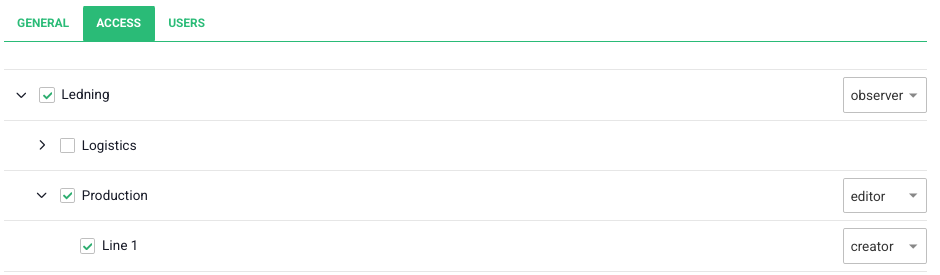
Under this tab, you select which organizations the users included in the access group should have access to, as well as the permissions they should have within them.
The access group provides access to an organization if the box to the left of it is checked.
To choose the rights users should have within the organization, select one of the three options in the dropdown menu to the right of the organization:
Observer - Grants users viewing rights, i.e., the right to look at the boards. Users cannot input any information or make adjustments to the board.
Editor - Grants users viewing rights + editing rights; i.e., the right to add/edit/delete information on the board.
Creator - Grants users both viewing and editing rights + creation rights; i.e., the right to adjust the board's structure by adding/editing/moving and removing components.
Under this tab, you will see a list of users included in the selected access group. To edit the list, click on "Edit" in the upper right corner, and the window below will open.
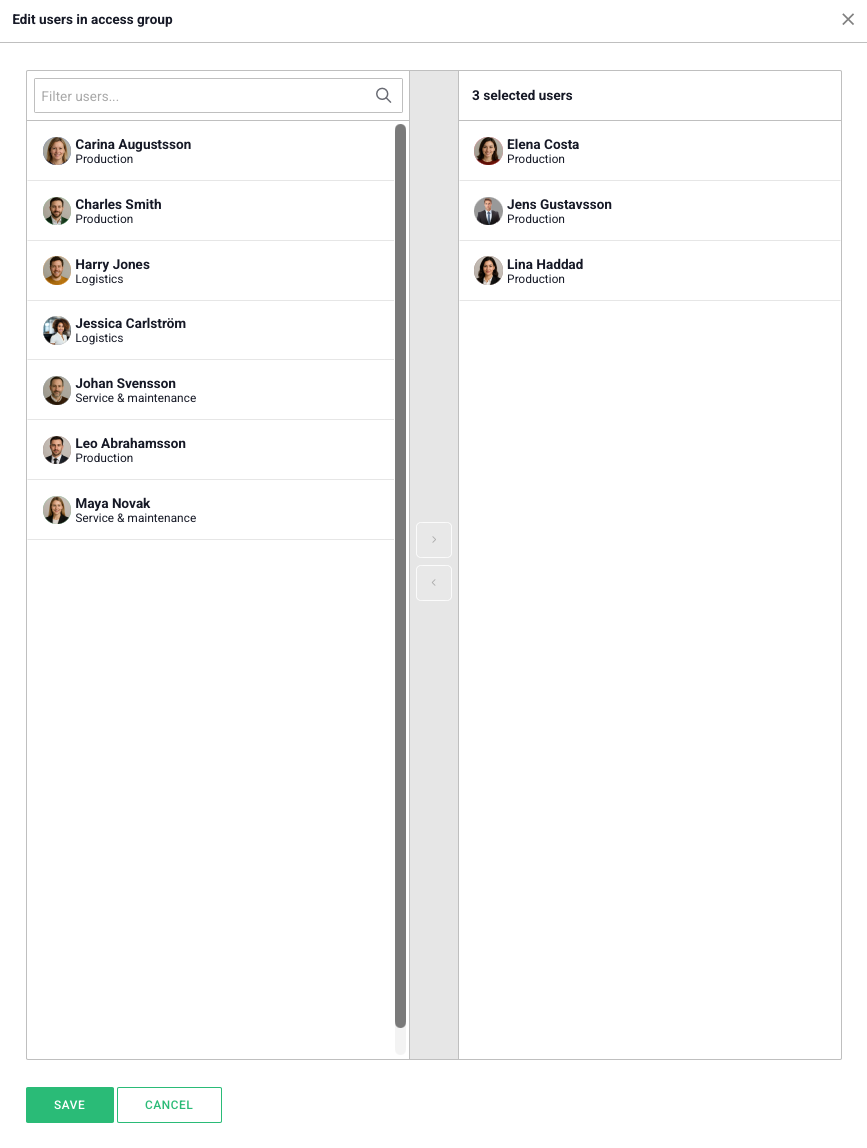
In the left column, you will see a list of all users in your environment. In the right column, you'll find the users included in the access group. To add or remove a user from the access group, you can drag the user between the columns or select one or more users and click on the arrows in the middle.
A user can be part of multiple access groups. If a user is granted access to an organization through several access groups, where different access groups provide different levels of authority to the same organization, the highest level of authority will apply.
If you want to know more about access groups, check out the video below:
Free web demo