
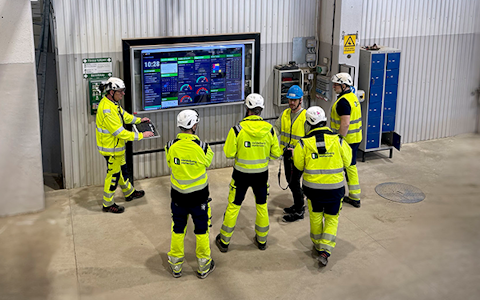
Digital dashboards that help you identify deviations and make the right decisions.
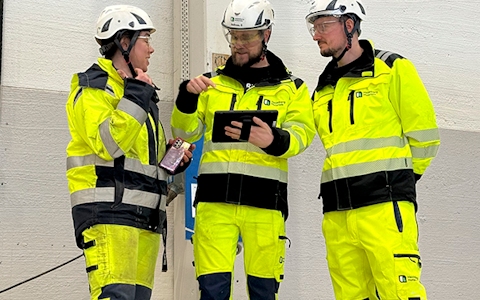
Continuous improvement, Kaizen boards, PDCA and other tools.

Capture your deviations and turn them into improvements

Real-time control for takt-based production. Detect disruptions as they happen, respond faster, and keep production on pace.

Integrate Boards on Fire with ERP, MES, OEE, Power BI and other systems. Automate data flows, reduce administration and act faster.
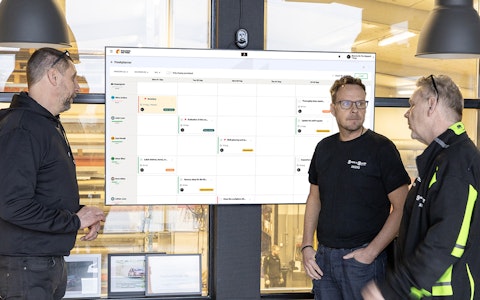
All your team’s tasks, neatly organized in one weekly view.
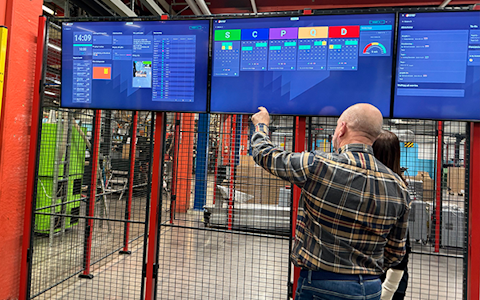
Improve key performance indicators within your specific focus areas with our SQCDP board.

Use the PDCA cycle as a tool to improve both quality and processes
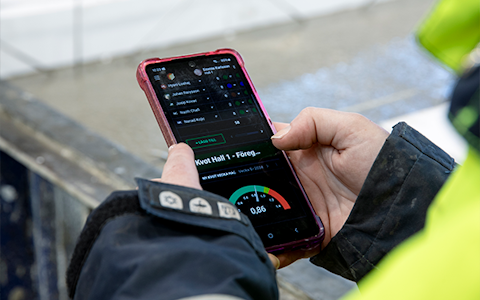
Digital tools for 5S work, recurring audits, and a well-organized workplace.

Basic project management and activity boards.
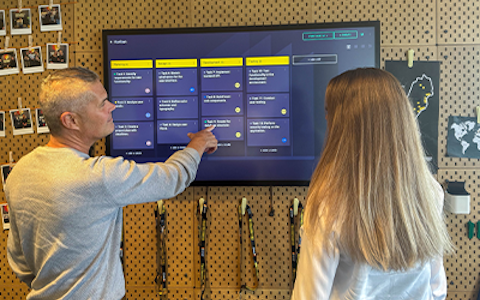
Kanban is a powerful method for visualizing, managing, and optimizing workflows.
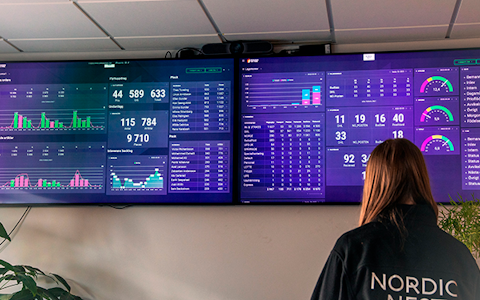
Visualize KPIs and communicate effectively throughout the entire organization.
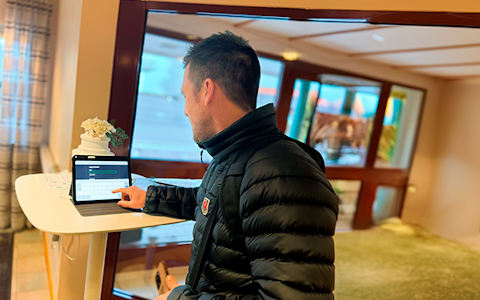
Digital visitor registration provides full control over all planned and executed visits to your business.
In Boards on Fire, user types are a way to define the level of access and functionality different users have in the system. Working with user types gives you better structure, control, and security over how the platform is used by different employees with different roles, regardless of their position or responsibilities.
There are four different user types in Boards on Fire, and the one you choose determines which functionality you will have access to in your environment.
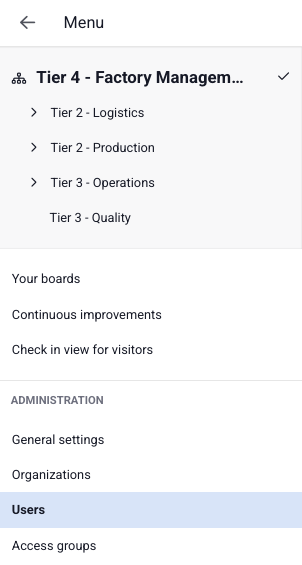
A user logs in with their email address and can create, edit, and update boards, as well as work with data in Boards on Fire depending on the access group they are assigned to (see the article about access groups here). This role is designed for employees who use the system in their daily work to enter and follow up on information and is the most common type of user.
Shared users are not linked to a specific individual, meaning they do not require a personal email address to log in. Instead, login occurs via a username and password, or through a special login link assigned to that user. The login link can be used to take the user directly to a specific board or organization, which is useful for startup scripts or other situations where you want to automatically land on a certain board.
The shared user is particularly useful in situations where multiple people need access to the same view without logging in with their personal profile. Examples include a display screen in a break room, production area, or entrance, where information should be visible to everyone. It can also apply to a check-in screen in the visitor module, where visitors register themselves.
Like the user type "User", a shared user must be assigned to one or more permission groups to control access to Boards on Fire.
Employees do not have their own login to the system but are visible in staff lists and can be assigned tasks. This role is used to include individuals in workflows and task planning without requiring direct access to Boards on Fire. Since boards are often displayed on large screens, it is clear which employees have been assigned tasks, and if they do not need to enter information on the boards themselves, they do not require access.
This user type functions similarly to a regular user but with extended permissions. In addition to standard features, the customer administrator has full access to all organizations on the platform and all parts of the admin interface. This role is ideal for users who need to work at a higher level and manage settings or administration across the platform. Like the other user types, customer administrators do not need to be placed in a permission group. It is recommended to limit this user type to a small number of people so that too many do not have the ability to change everything in the platform.
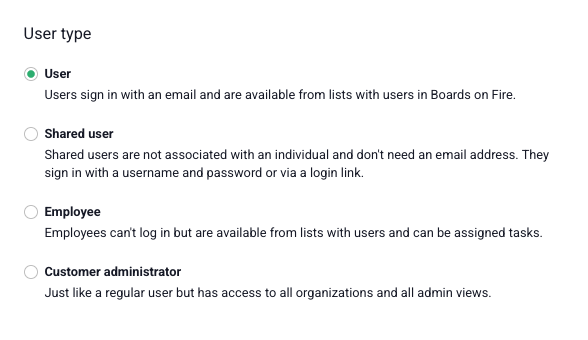
In some cases, a regular user may need access to parts of the administration interface without being a customer administrator. Extended permissions can be used for this purpose.
With extended permissions, a customer administrator can give a user administrative access to specific areas of Boards on Fire. This makes it possible to distribute administrative responsibility between several people without giving everyone full access to the entire customer environment.
Extended permissions are separate from the user’s regular permissions for organisations, boards and content. A user can therefore be allowed to administer a specific area while still needing the appropriate access to the relevant organisation where required.
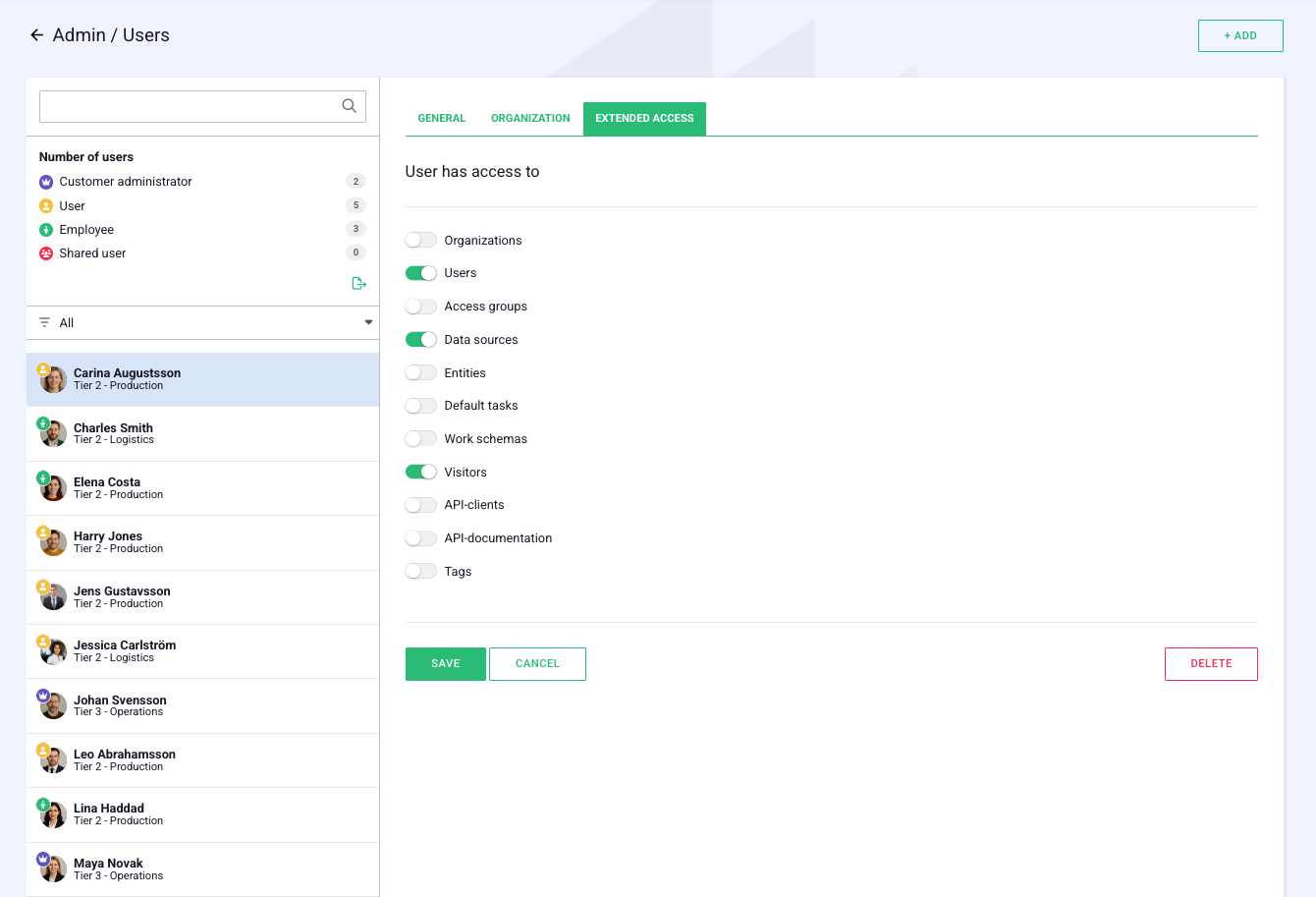
Which extended permissions are available?
Note: The available options may vary depending on which modules are enabled in the customer environment.
Assign extended permissions
Open the user you want to administer and go to the Extended permissions tab. Here you can select which administrative areas the user should have access to.
For example, one person can be responsible for Users and Access groups, while another can be responsible for Data sources and Entities.
Assigning an extended permission does not make the user a customer administrator. Customer administrators automatically have all extended permissions.
Good to know
Only assign the extended permissions that the user actually needs for their work. Several of these permissions allow changes that can affect large parts of the customer environment.
Be particularly careful when assigning permissions for areas such as Organisations, Users, Data sources, Entities, API clients and Integrations.
By distributing permissions according to responsibility, you gain better control over who can administer different parts of Boards on Fire without giving more users full customer administrator access.
As a customer administrator, you always have the ability to easily upgrade or downgrade a user’s type as needed. This makes it easy to adjust access according to changes in the team, ensuring that everyone always has the right access for their tasks.
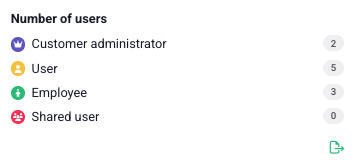
Customer administrators, or users with extended access for “Users”, can also export user lists from Boards on Fire containing all registered employees. In the system, you can view each user type and the number of users in each category. You can then choose to export a list of all users, or only those belonging to a specific user type, depending on your needs.
Provide only the access that are truly necessary. This helps create clarity and secure management, as it becomes easier to track who is doing what in the system. When too many users have full access, it can lead to multiple people trying to manage the same things simultaneously, making collaboration less smooth. By giving the right access to the right person, you create a safe and efficient working environment for everyone.

When you add a user in Boards on Fire, an invitation is automatically sent to their email. The user can follow a link to set their own password and gain access to the system.
Choosing the right user type is not only about access - it is about giving each person the right conditions to contribute effectively. Clearly defined user types make working in Boards on Fire simpler, safer, and more aligned with how your organization operates.
If you need to reset your password, you can do so easily via the login page (each customer has a unique login page) by clicking the “Forgot password” link. Enter the email address associated with your account. A verification code will be sent to your inbox. Enter the code on the page to confirm your identity. Once verified, you can create a new password and log in as usual.
Please note that it may take a few minutes for the verification email to arrive—check your spam folder if you do not see it immediately.
Free web demo
