

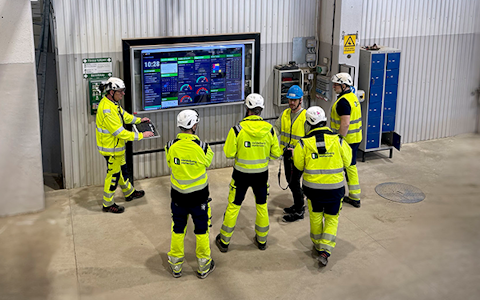
Digital dashboards that help you identify deviations and make the right decisions.
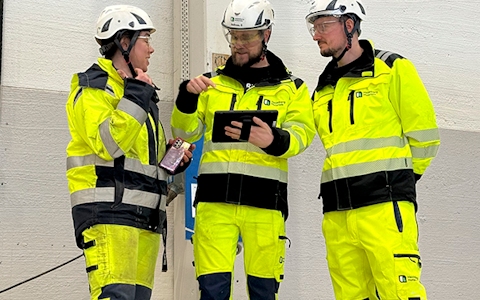
Continuous improvement, Kaizen boards, PDCA and other tools.

Capture your deviations and turn them into improvements

Real-time control for takt-based production. Detect disruptions as they happen, respond faster, and keep production on pace.

Integrate Boards on Fire with ERP, MES, OEE, Power BI and other systems. Automate data flows, reduce administration and act faster.
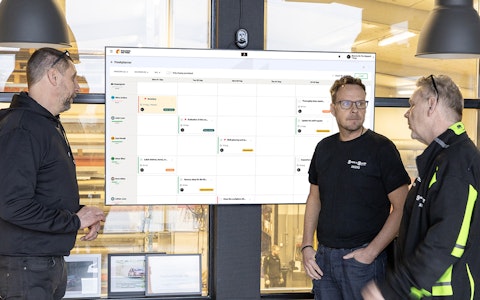
All your team’s tasks, neatly organized in one weekly view.
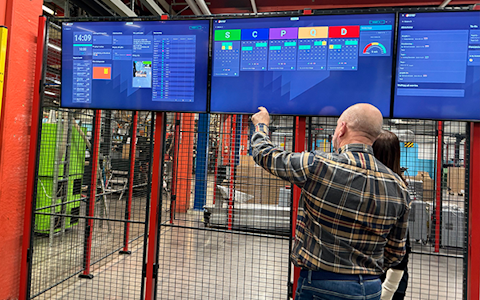
Improve key performance indicators within your specific focus areas with our SQCDP board.

Use the PDCA cycle as a tool to improve both quality and processes
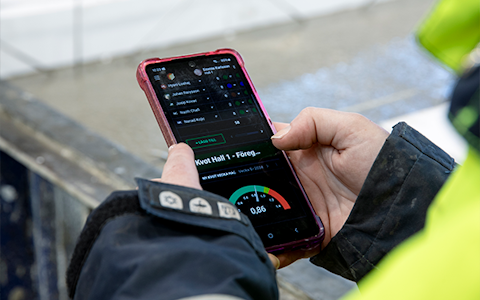
Digital tools for 5S work, recurring audits, and a well-organized workplace.

Basic project management and activity boards.
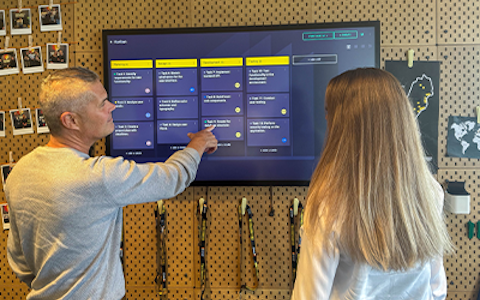
Kanban is a powerful method for visualizing, managing, and optimizing workflows.
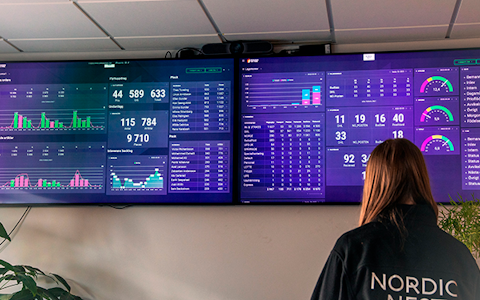
Visualize KPIs and communicate effectively throughout the entire organization.
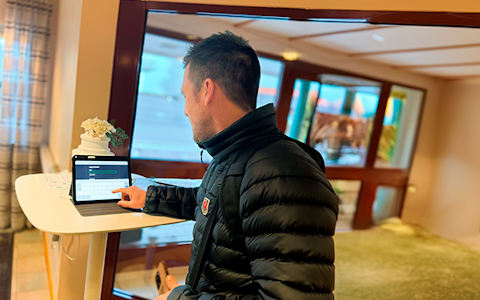
Digital visitor registration provides full control over all planned and executed visits to your business.
The Linked Page component (previously the Iframe component) in Boards on Fire makes it possible to display and work with content from external sources directly on a board. For example, you can embed websites, Microsoft Power BI reports, or Microsoft Excel files. It can also be used as a button to link externally or internally between boards and organizations in Boards on Fire.
The component partly works like a window where the external content is displayed in real time. This means that you can not only view the information, but also interact with it directly without leaving Boards on Fire. In many cases, you can work in the document just as you normally would, depending on how the source is configured.
By using the Linked Page component, you can gather important tools and data in one place. This creates a more cohesive workspace, reduces the need to switch between different systems, and makes it easier to keep the team up to date.
For example, you can:
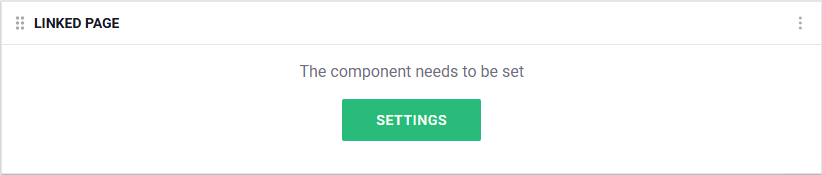
When you click "Linked Page component" in the component menu, a box with a settings button appears. Click the button to open the settings, which are shown in the next image.
In the Linked Page settings, you need to choose whether the component should be used to embed a URL (display an external page) or whether it should be used as a button for linking externally or internally between boards and organizations in Boards on Fire. We will first show how it is used to embed a page:
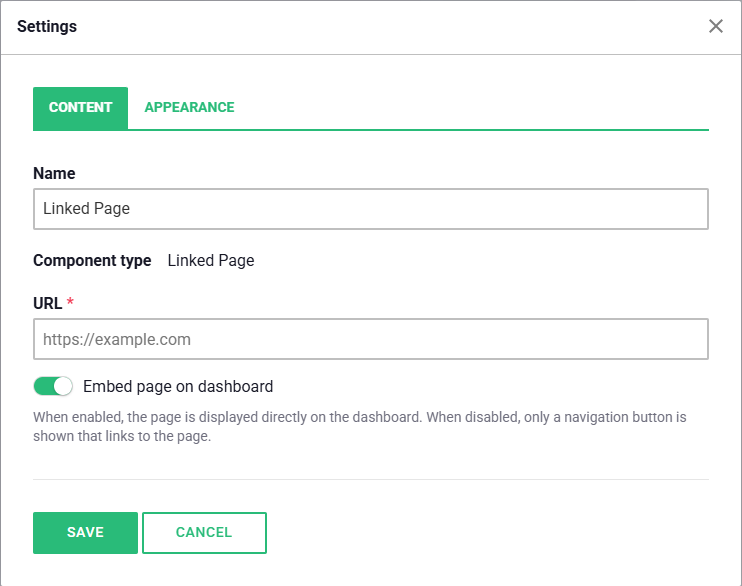
Paste the embedded link you want to use into the URL field. Keep in mind that it needs to be publicly accessible for this to work. If it is a report from, for example, Power BI, the signed-in user needs to have access to it.
Tip: Further down on this page, you will find URL parameters that may need to be added to the end of your link for embedding to work, including parameters for Microsoft services.
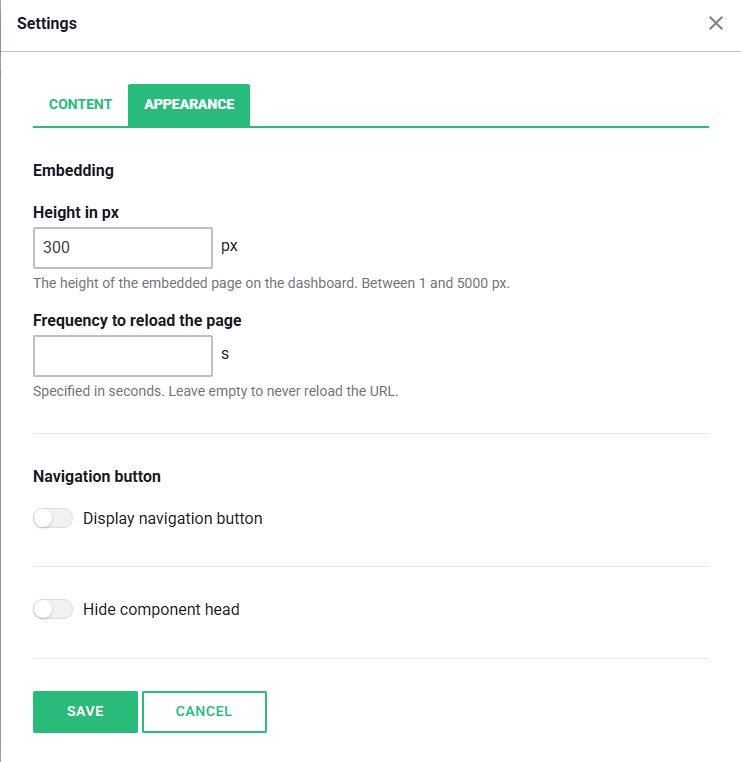
Under Appearance, you can change the height of the component in pixels and set a time interval for how often the embedded page should reload. Enable the navigation button if you want a button below the component that opens a new browser window and takes you directly to the link saved in the URL field.
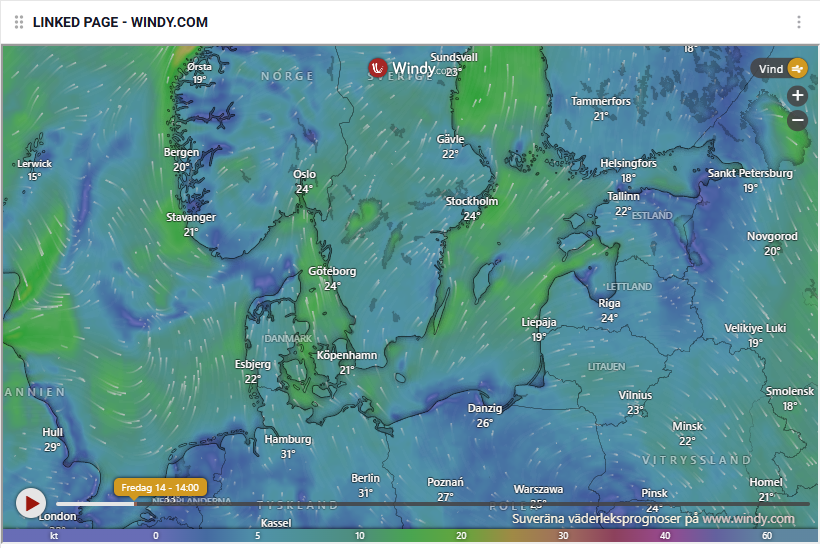
For example, it may look like this if the button is enabled and a weather page has been embedded:
For content from certain sources, it is possible to modify the URL so that the embedded window behaves differently. You do this by adding a parameter to the link entered in the component. The parameters we are aware of are:
All Microsoft services:
&action=embedview – Required for the link to work.Excel:
&wdAllowInteractivity=True – Makes the content in the document interactive.&wdbipreview=True – Makes BI content in the worksheet visible.&wdHideSheetTabs=True – Hides the worksheet tabs at the bottom of the Excel file.YouTube:
&autoplay=1 – Makes the video start playing automatically.&loop=1 – Automatically restarts the video when it reaches the end.To link externally or internally in Boards on Fire, disable the embed function. The component will then only act as a button for navigation. Paste in a URL, for example to an improvement board or an external system.
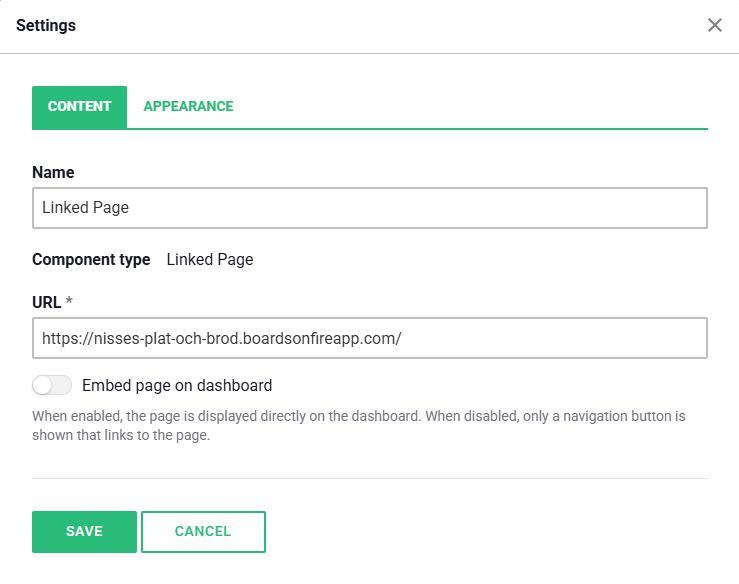
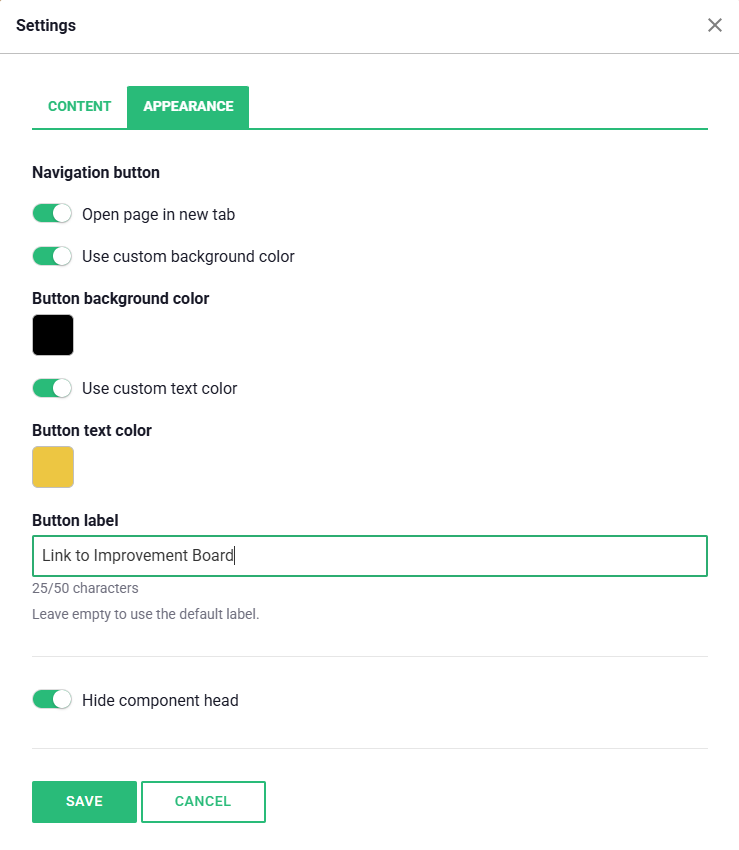
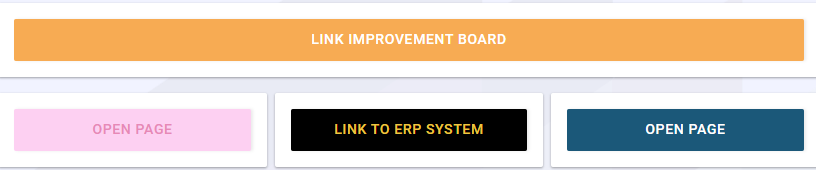
Then go to the "APPEARANCE" tab to style the button. You can choose whether the button opens a new tab or navigates within the same browser window. Enable customization of the background color and text color, and change the button text to make it fit better with your board.
Here are a few examples of what it can look like:
There are many smart add-on features in Boards on Fire. As a logged-in user, you can find a list of them all under Add-ons in the left-hand menu!
There are many smart add-on features in Boards on Fire. As a logged-in user, you can find a list of them all under Add-ons in the left-hand menu!
Free web demo