
Digital dashboards that help you identify deviations and make the right decisions.

Continuous improvement, Kaizen boards, PDCA and other tools.

Capture your deviations and turn them into improvements

Real-time control for takt-based production. Detect disruptions as they happen, respond faster, and keep production on pace.

Integrate Boards on Fire with ERP, MES, OEE, Power BI and other systems. Automate data flows, reduce administration and act faster.
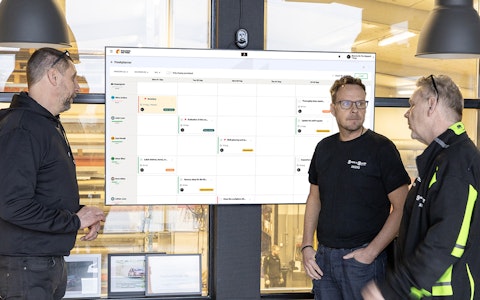
All your team’s tasks, neatly organized in one weekly view.
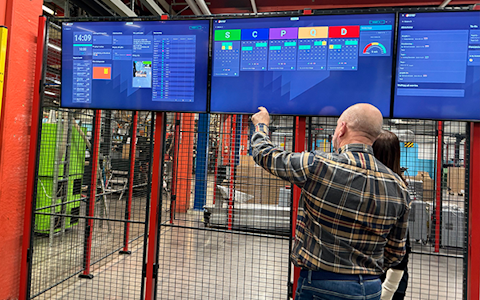
Improve key performance indicators within your specific focus areas with our SQCDP board.

Use the PDCA cycle as a tool to improve both quality and processes
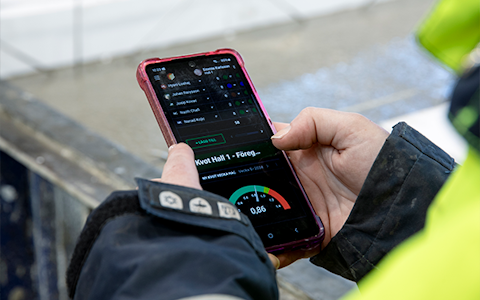
Digital tools for 5S work, recurring audits, and a well-organized workplace.

Basic project management and activity boards.
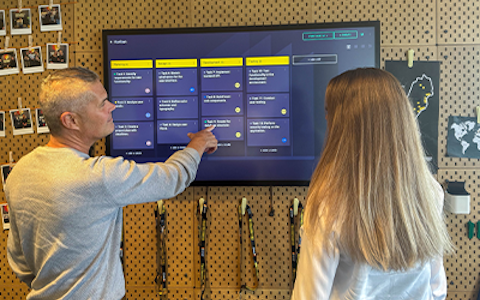
Kanban is a powerful method for visualizing, managing, and optimizing workflows.
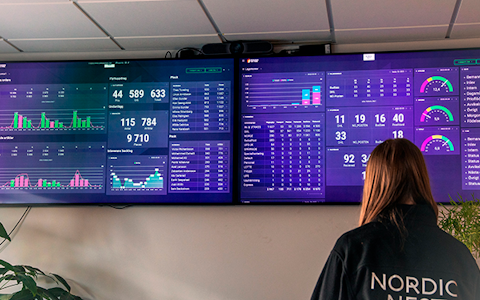
Visualize KPIs and communicate effectively throughout the entire organization.

Digital visitor registration provides full control over all planned and executed visits to your business.
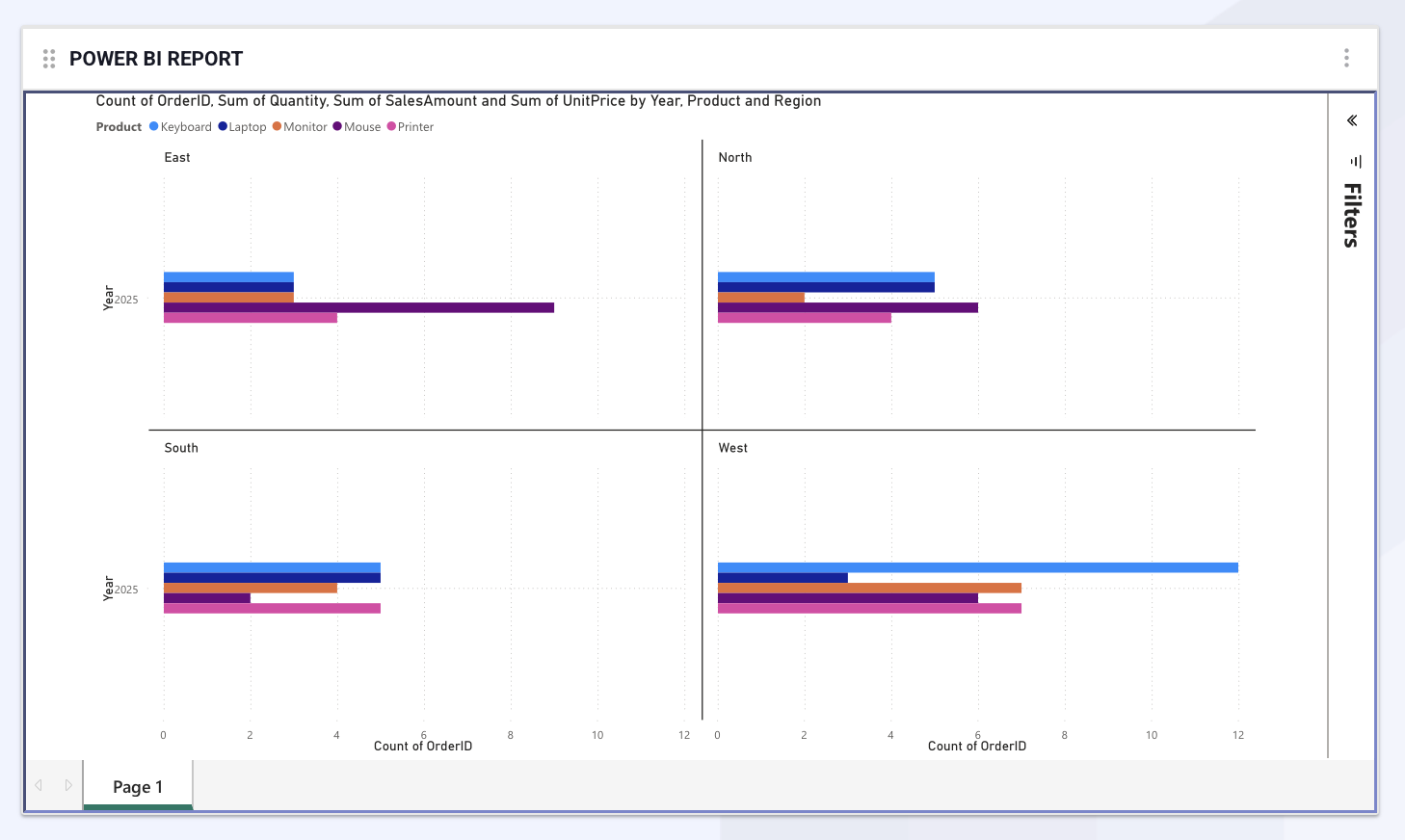
With the Power BI component, you can view and interact with your Power BI reports directly inside your Boards on Fire dashboards, without having to switch between different systems.
For the Power BI component to work, the module must be enabled for your organization in Boards on Fire, and all users must have a valid Power BI license (at least Power BI Pro, or a report located in a Power BI Premium workspace).
Before the Power BI component can be used, an IT administrator in your organization must approve the integration in Microsoft Entra ID.
The approval applies to the enterprise application "Boards on Fire - Power BI" and only needs to be completed once per organization. After approval, users can connect their Power BI accounts to Boards on Fire without requiring additional administrator consent.
How to approve the integration:
Approve Boards on Fire - Power BI in Microsoft Entra
Alternatively, an authorized IT administrator can approve the integration directly when connecting to Power BI from Boards on Fire for the first time.
The approval allows Boards on Fire to read Power BI reports and workspaces on behalf of users, without granting the application administrative privileges or access to data that users are not already authorized to access.
Once the administrator has approved the application, users can sign in and view the reports they have access to.
When you add the Power BI component to a dashboard and open its settings, you will find two tabs: General and Appearance.
Under the General tab, you enter the Name, which is the title displayed at the top of the component, and select the Workspace and Report from searchable lists linked to your Power BI account.
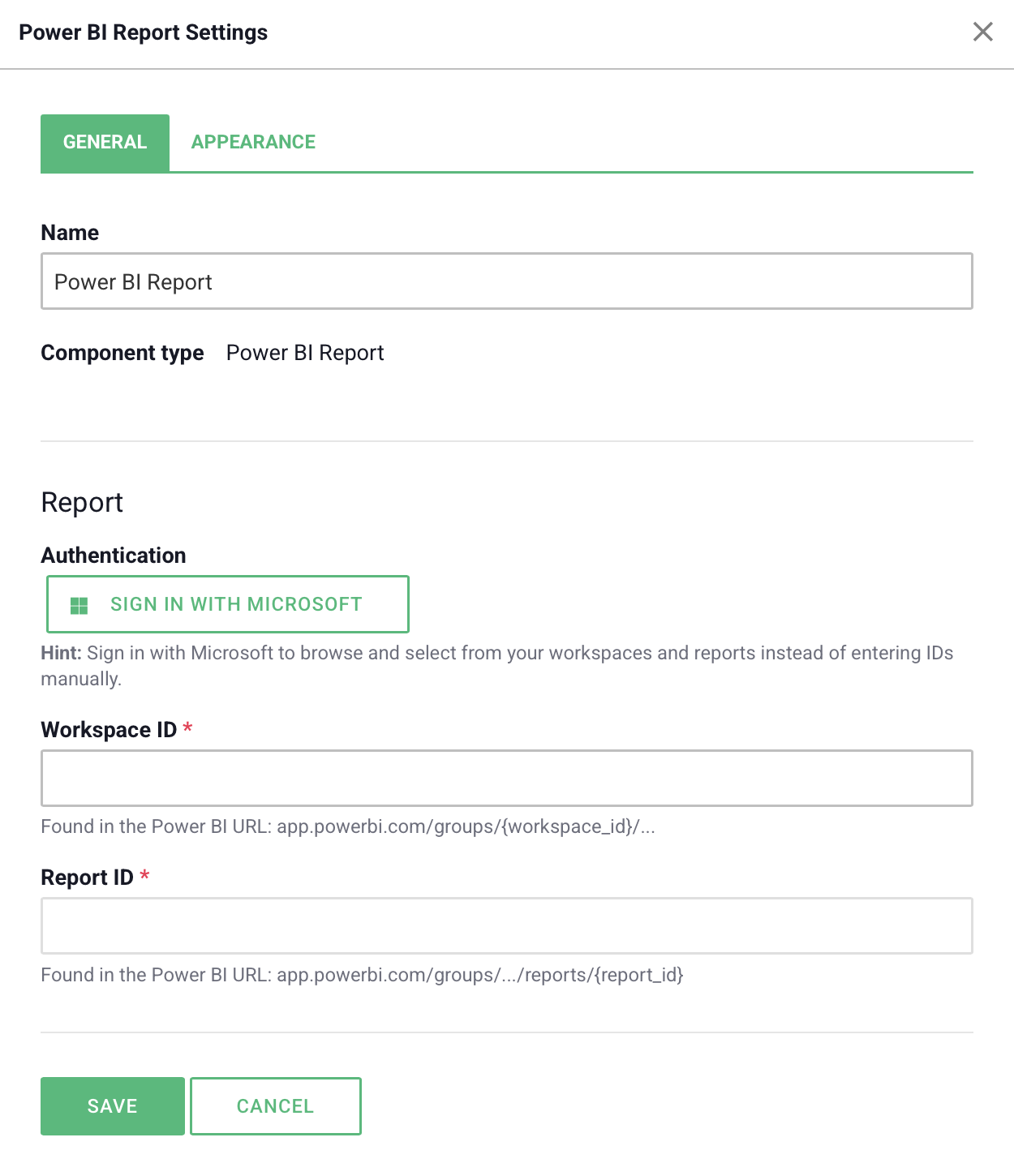
Under the Appearance tab, there are several customization options.
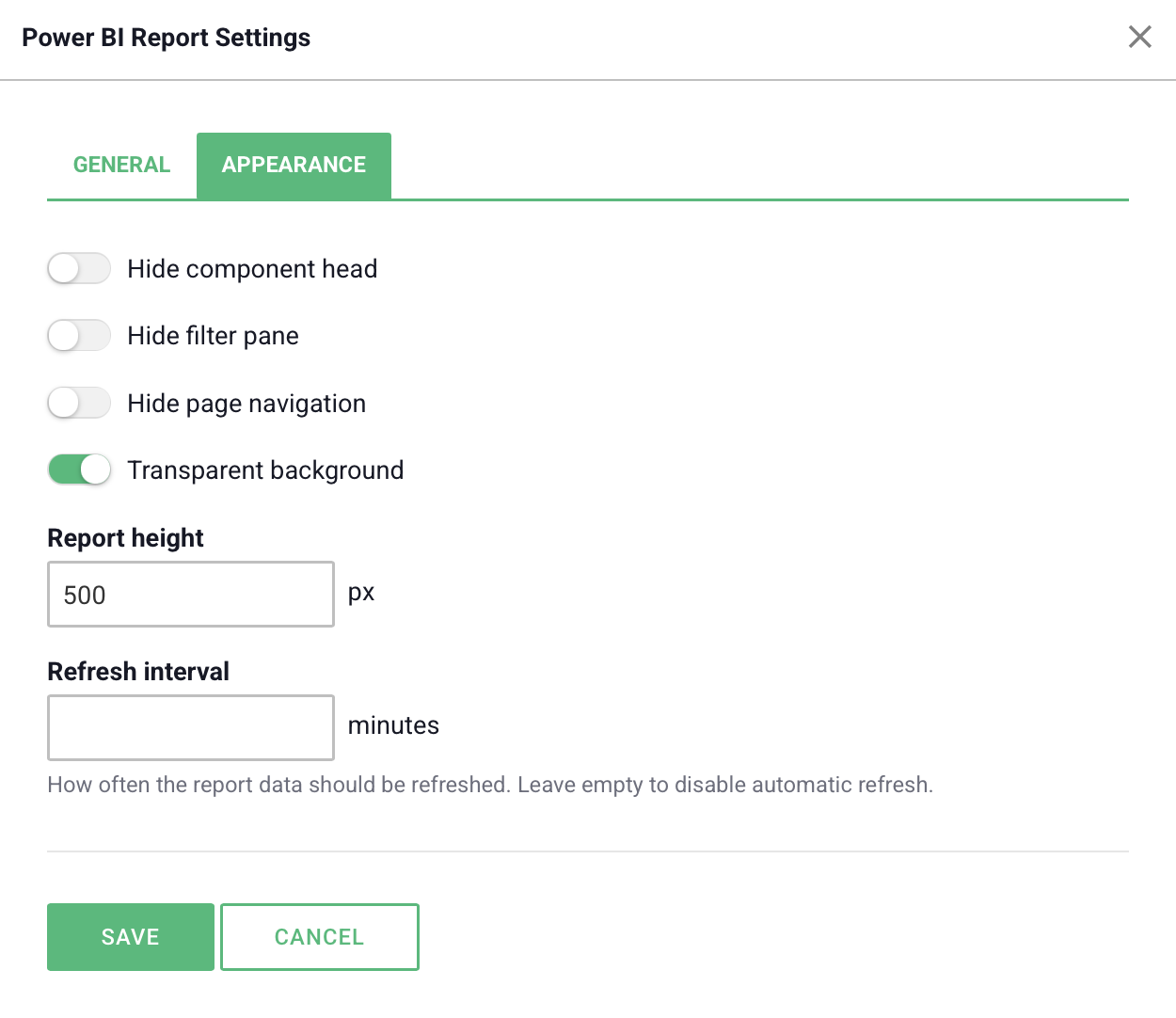
Please note that the report automatically adapts its language, date, and number formatting based on your selected language setting in Boards on Fire (Swedish, English, or German). The report also always loads in its default state when you refresh the page, meaning any filters you click will not be saved between sessions.
To display the report, you need to connect your Microsoft account.
Your sign-in remains active for up to 90 days, after which you simply click the sign-in button again when prompted.
If you are displaying a dashboard on a TV screen, the following applies:
If you see the "Sign in with Microsoft" button, your session has expired or it is your first time using the component. Simply click the button to sign in.
If you see the "You don't have access" icon, you are signed in, but your Microsoft account lacks permission to view that specific report in Power BI. Ask the owner of the Power BI report to grant you access.
If the "Not available" icon is displayed, the Power BI module is not enabled for your organization in Boards on Fire. Contact your administrator or Boards on Fire support for assistance.
If you receive the "Tenant mismatch" error message, you have signed in with a personal Microsoft account or an account from a different organization than the one connected to your Boards on Fire account. Log out and sign in again using your correct work account.
If the sign-in window does not open, your browser may have blocked the popup window. Make sure to allow popups from Boards on Fire in your browser settings.
Does every user need their own Power BI license?
Yes, viewing embedded reports requires each user to have at least a Power BI Pro license, or for the report to be hosted in a workspace with Power BI Premium capacity.
Can I edit the report directly inside Boards on Fire?
No, the component is read-only and designed for viewing and interaction, such as filtering and drilling down. Changes to the report design itself must be made directly in Power BI.
Is it possible to embed Power BI Dashboards?
No, currently only Power BI Reports are supported, not full Dashboards or individual Dashboard tiles.
Is our report data stored or transmitted through Boards on Fire?
No, the report is loaded directly from Power BI into your web browser. Boards on Fire only manages the sign-in authentication, meaning your data never passes through Boards on Fire servers.
Free web demo